> ## Documentation Index
> Fetch the complete documentation index at: https://docs.doko-ai.com/llms.txt
> Use this file to discover all available pages before exploring further.
# Custom Tools
> Discover and learn how to use the powerful tools available for your chatbot.
## Custom Tool (API)
With this tool you can enable your bot to use any API endpoint as you want.
 ### Set your tool
Click the "Create Tool" button to start configuring your custom tool.
### Set your tool
Click the "Create Tool" button to start configuring your custom tool.
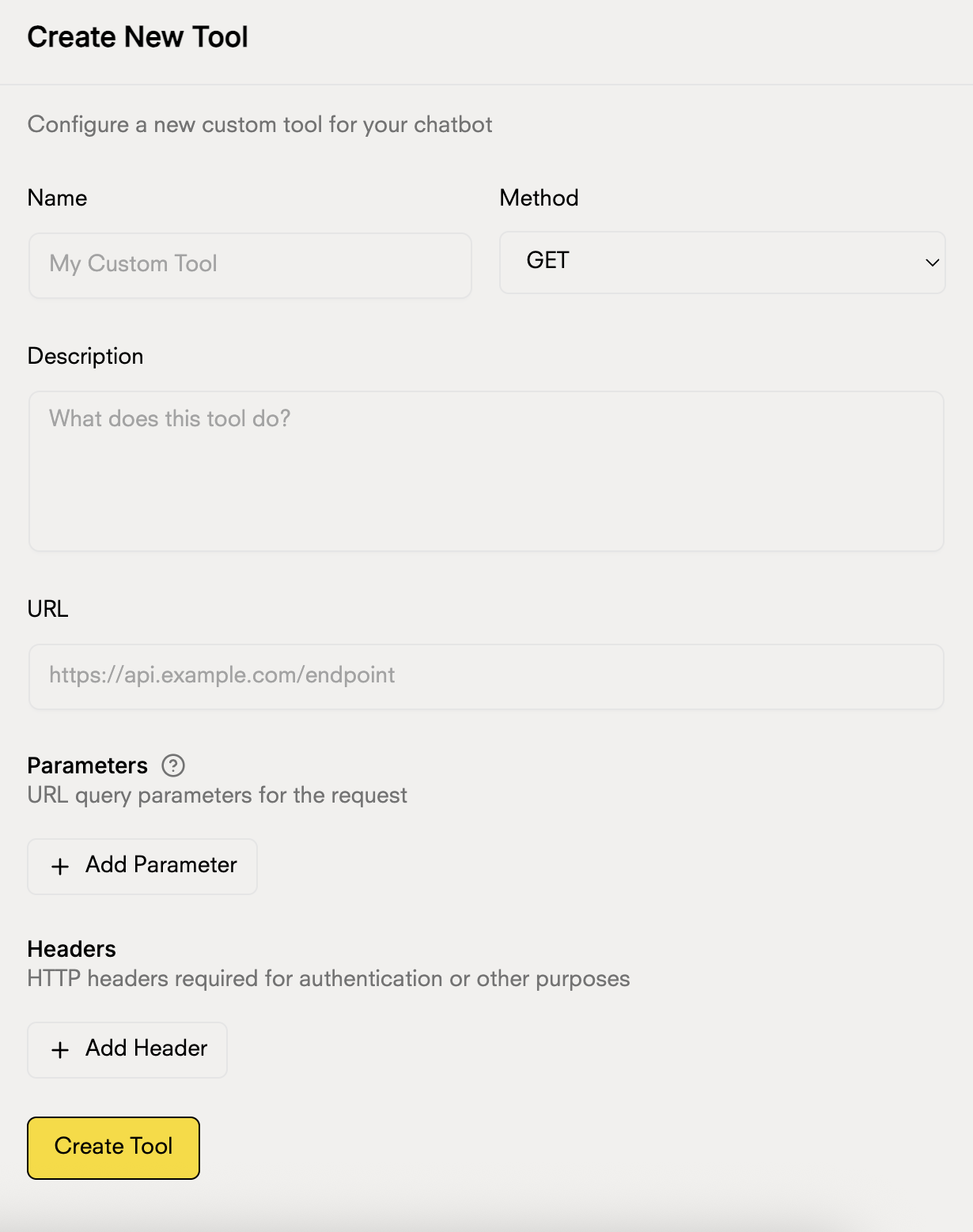 Complete the main fields of your tool:
* **Name**: Give your tool a descriptive name
* **Method**: Select the HTTP method (GET, POST, PUT, DELETE)
* **Description**: Explain what this tool does so the chatbot knows when to use it
* **URL**: Enter the URL of your API endpoint
If you selected POST, PUT, or DELETE, you can configure the fields of the request body:
For each body field, you can configure:
* **Name**: The name of the field (e.g., userData, user\_data, items)
* **Type**: The data type (String, Number, Boolean, etc.)
* **Is an Array**: Check this option if the field should be an array
* **Description**: Explain what information this field contains
Configuration examples:
* Simple field: `name` (String) - To send a username
* Array field: `products` (String, Is an array ✓) - To send a list of products
* Numeric field: `quantity` (Number) - To send quantities
* Boolean field: `active` (Boolean) - To indicate if a user is active
* Object field: `address` (Object) - To send a user's full address
The body is only necessary for POST, PUT, and DELETE methods. GET does not use a body.
If your API requires query parameters, click "Add Parameter" and configure:
* Parameter name
* Data type
* Whether it is required or optional
Parameters are sent as query strings in the URL
For APIs that require authentication or specific headers, click "Add Header":
* Header name (e.g., Authorization, Content-Type)
* Header value (e.g., Bearer token, application/json)
Keep your tokens and API keys secure. Do not share this information.
Once the configuration is complete, click "Create Tool" to save and activate your custom tool.
### Usage Examples
**Name**: Weather Query\
**Method**: GET\
**URL**: `https://api.openweathermap.org/data/2.5/weather`\
**Parameters**:
* `q` (city)
* `appid` (your API key)
* `units` (metric)
**Name**: Stock Query\
**Method**: GET\
**URL**: `https://your-api.com/inventory/check`\
**Headers**:
* `Authorization`: `Bearer your-token`
* `Content-Type`: `application/json`
Your chatbot will automatically know when to use this tool based on the description you provide. Be specific about when and how it should be used.
Complete the main fields of your tool:
* **Name**: Give your tool a descriptive name
* **Method**: Select the HTTP method (GET, POST, PUT, DELETE)
* **Description**: Explain what this tool does so the chatbot knows when to use it
* **URL**: Enter the URL of your API endpoint
If you selected POST, PUT, or DELETE, you can configure the fields of the request body:
For each body field, you can configure:
* **Name**: The name of the field (e.g., userData, user\_data, items)
* **Type**: The data type (String, Number, Boolean, etc.)
* **Is an Array**: Check this option if the field should be an array
* **Description**: Explain what information this field contains
Configuration examples:
* Simple field: `name` (String) - To send a username
* Array field: `products` (String, Is an array ✓) - To send a list of products
* Numeric field: `quantity` (Number) - To send quantities
* Boolean field: `active` (Boolean) - To indicate if a user is active
* Object field: `address` (Object) - To send a user's full address
The body is only necessary for POST, PUT, and DELETE methods. GET does not use a body.
If your API requires query parameters, click "Add Parameter" and configure:
* Parameter name
* Data type
* Whether it is required or optional
Parameters are sent as query strings in the URL
For APIs that require authentication or specific headers, click "Add Header":
* Header name (e.g., Authorization, Content-Type)
* Header value (e.g., Bearer token, application/json)
Keep your tokens and API keys secure. Do not share this information.
Once the configuration is complete, click "Create Tool" to save and activate your custom tool.
### Usage Examples
**Name**: Weather Query\
**Method**: GET\
**URL**: `https://api.openweathermap.org/data/2.5/weather`\
**Parameters**:
* `q` (city)
* `appid` (your API key)
* `units` (metric)
**Name**: Stock Query\
**Method**: GET\
**URL**: `https://your-api.com/inventory/check`\
**Headers**:
* `Authorization`: `Bearer your-token`
* `Content-Type`: `application/json`
Your chatbot will automatically know when to use this tool based on the description you provide. Be specific about when and how it should be used.