> ## Documentation Index
> Fetch the complete documentation index at: https://docs.doko-ai.com/llms.txt
> Use this file to discover all available pages before exploring further.
# Meetings
> Discover and learn how to use the powerful tools available for your chatbot.
Allows users to schedule appointments directly through your chatbot. Some of the features included in this tool are:
* Confirmation emails
* Appointment scheduling templates
* Confirmation messages
* Time zone handling
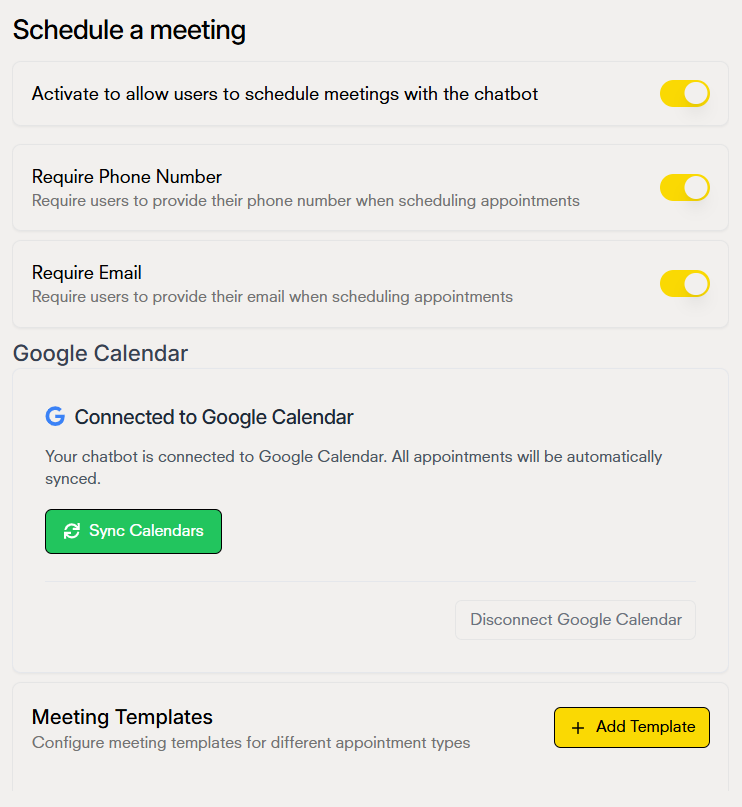 If your chatbot has Google Calendar integration, your appointments will be scheduled in your calendar
### Adding meeting templates
Each template defines the duration, availability window, and calendar settings for different types of meetings. When a user queries or schedules, the system uses these templates to show available times and generate well-formatted events.
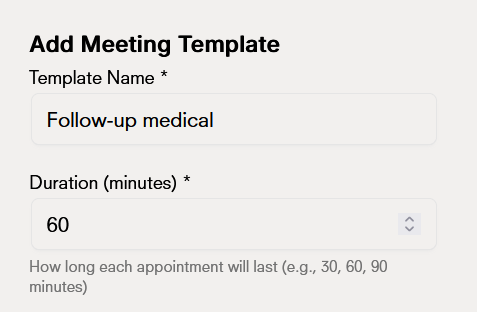
* Add the **name** of what the template will be called and the **duration** of the appointment.
If your chatbot has Google Calendar integration, your appointments will be scheduled in your calendar
### Adding meeting templates
Each template defines the duration, availability window, and calendar settings for different types of meetings. When a user queries or schedules, the system uses these templates to show available times and generate well-formatted events.
* Add the **name** of what the template will be called and the **duration** of the appointment.
 * Define your event title and choose a color
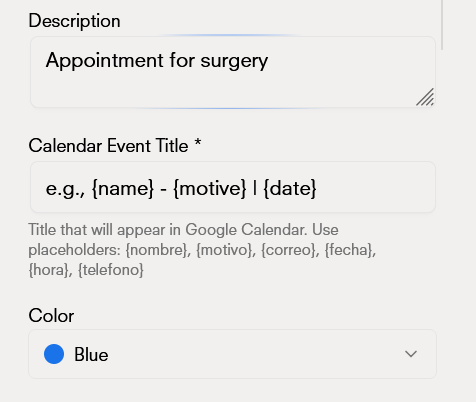 The name, reason, or date fields change for each user
* Describe the event, then add the location where the appointment will take place
The name, reason, or date fields change for each user
* Describe the event, then add the location where the appointment will take place
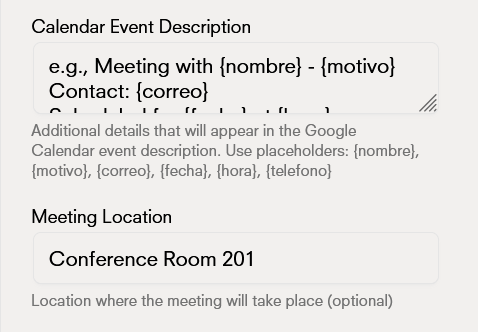 * Define the availability of your appointments
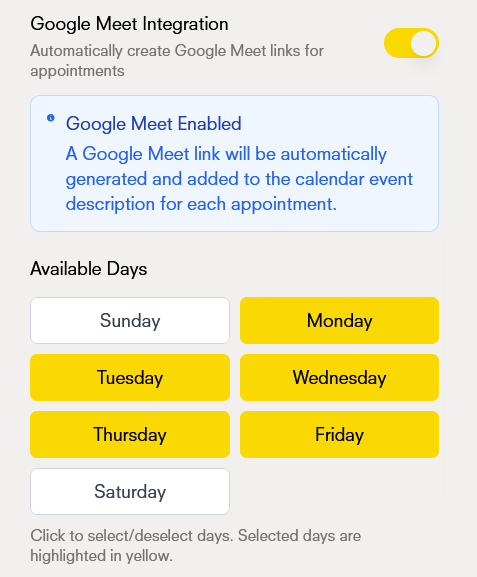 * Set your availability schedule
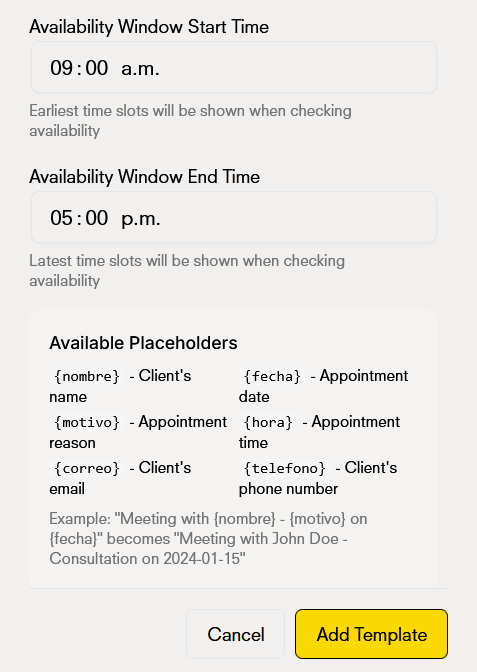 * Your template is completed and ready to use
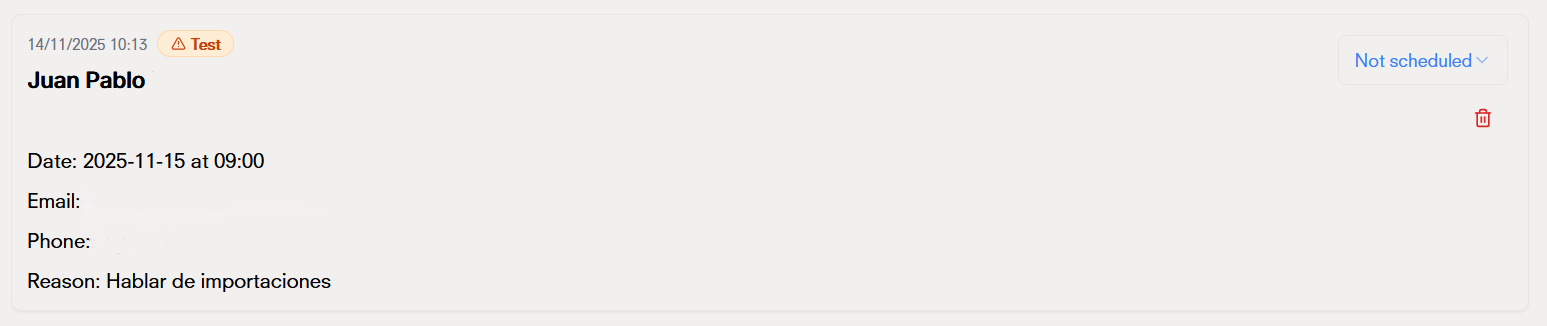
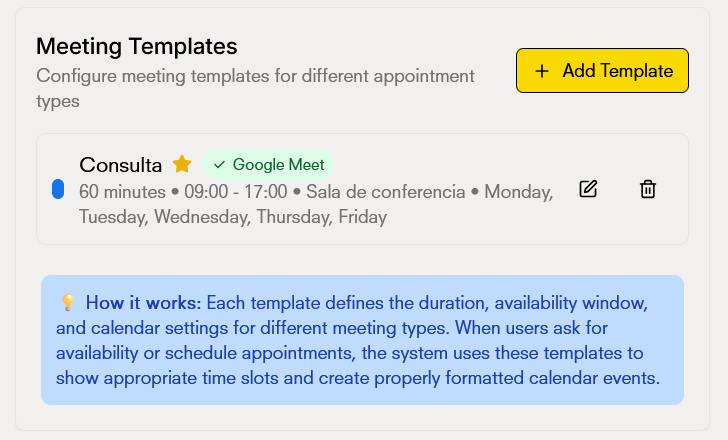 This is how data is captured in the chatbot's [database](/en/chatbot/database)