> ## Documentation Index
> Fetch the complete documentation index at: https://docs.doko-ai.com/llms.txt
> Use this file to discover all available pages before exploring further.

# Google Calendar

> Integrate your chatbot with Google Calendar to schedule appointments.

### Integration with your Google Calendar account

[Create your chatbot here](https://doko-ai.com/en/sign-up)

<Steps>
  <Step>
    <h3>Go to Settings>Integrations in your chatbot portal and select Google Calendar</h3>

    <Frame>
      <img src="https://mintcdn.com/doko/wNz10e2dI8HDdsq4/images/boton-gc1.png?fit=max&auto=format&n=wNz10e2dI8HDdsq4&q=85&s=9414023d22204e56b27cfeaed5321d2c" alt="Connect" width="1716" height="292" data-path="images/boton-gc1.png" />
    </Frame>
  </Step>

  <Step>
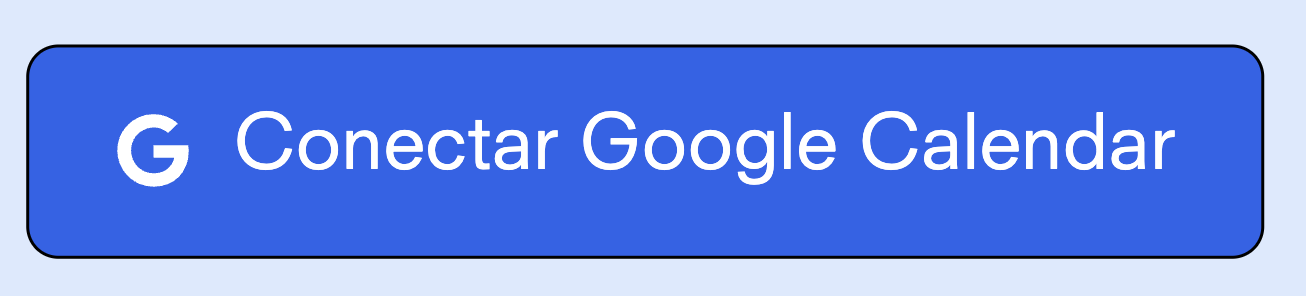
    <h3>Click on Connect</h3>

    <Frame>
      <img src="https://mintcdn.com/doko/wNz10e2dI8HDdsq4/images/boton-gc2.png?fit=max&auto=format&n=wNz10e2dI8HDdsq4&q=85&s=2c78fa1d5f628e97365ed374b359efb0" alt="Connect" width="1306" height="296" data-path="images/boton-gc2.png" />
    </Frame>
  </Step>

  <Step>
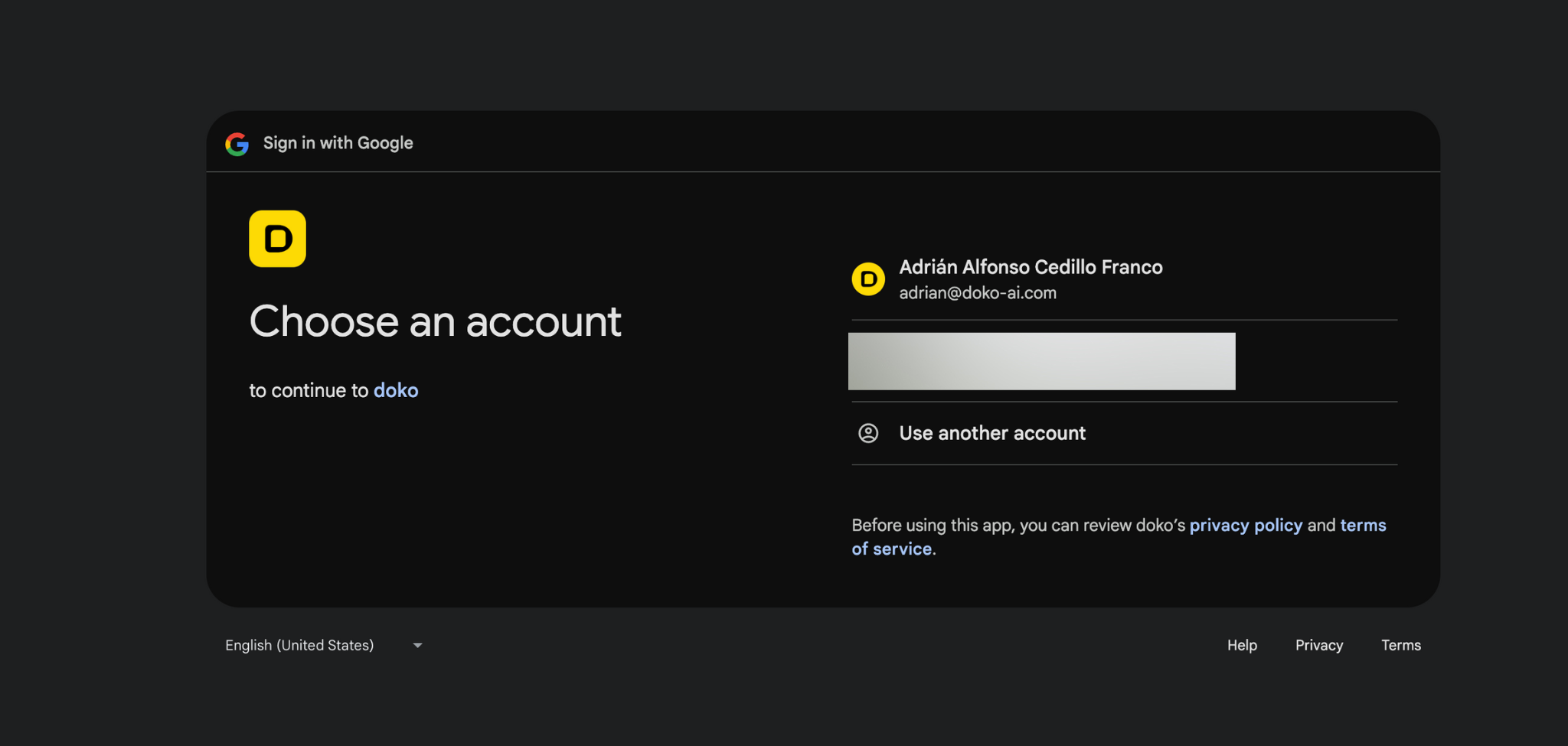
    <h3>Connect the Doko app with your Google account</h3>

    <Frame>
      <img src="https://mintcdn.com/doko/pKbjWpjWFDIh-Q-V/images/cuenta-gc1.png?fit=max&auto=format&n=pKbjWpjWFDIh-Q-V&q=85&s=15bccf087e3f2b4f0322cd1c5aee6a74" alt="Connect" width="2048" height="975" data-path="images/cuenta-gc1.png" />
    </Frame>
  </Step>

  <Step>
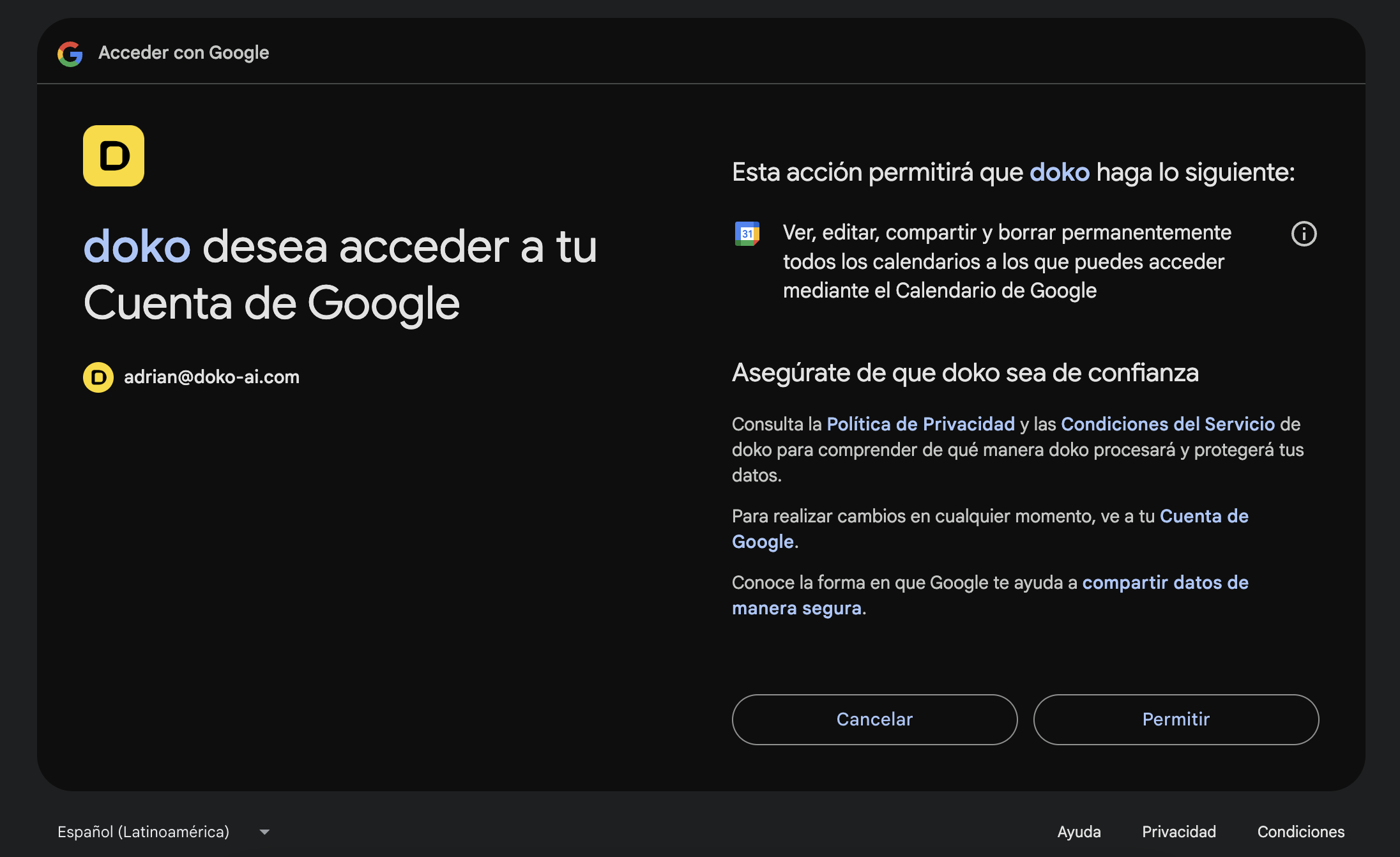
    <h3>Grant the necessary permissions for Doko to access your Google account</h3>

    <Frame>
      <img src="https://mintcdn.com/doko/-p4Q5Mr8bh5M5OS8/images/permisos1.png?fit=max&auto=format&n=-p4Q5Mr8bh5M5OS8&q=85&s=0803390e07b281e22a632b3984317600" alt="Permissions" width="2192" height="1342" data-path="images/permisos1.png" />
    </Frame>
  </Step>

  <Step>
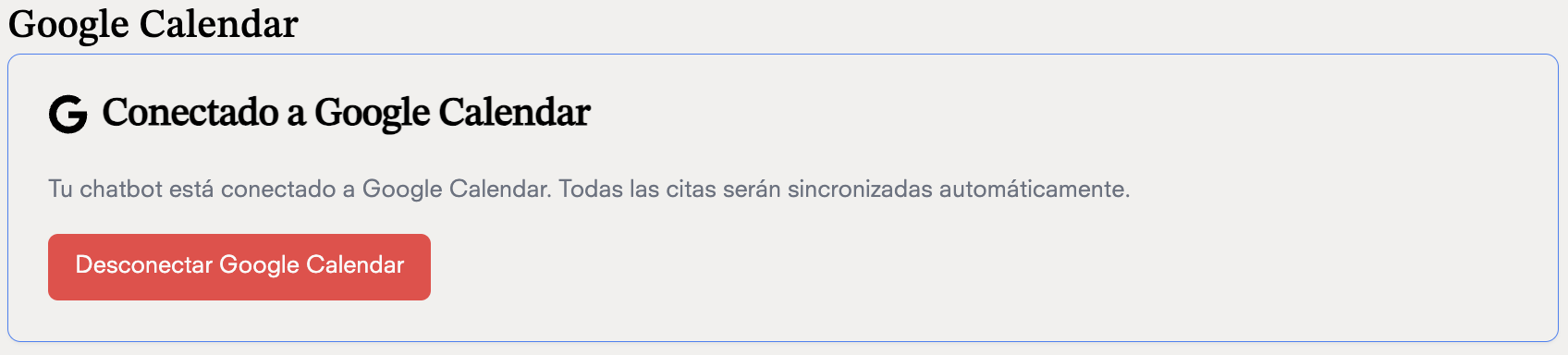
    <h3>Done! Your chatbot can now schedule appointments in your Google Calendar</h3>

    <Frame>
      <img src="https://mintcdn.com/doko/wNz10e2dI8HDdsq4/images/conectado-gc1.png?fit=max&auto=format&n=wNz10e2dI8HDdsq4&q=85&s=b8f23ac003d0ab1c8389fd3590302dc7" alt="Chat Bot" width="1696" height="384" data-path="images/conectado-gc1.png" />
    </Frame>
  </Step>
</Steps>

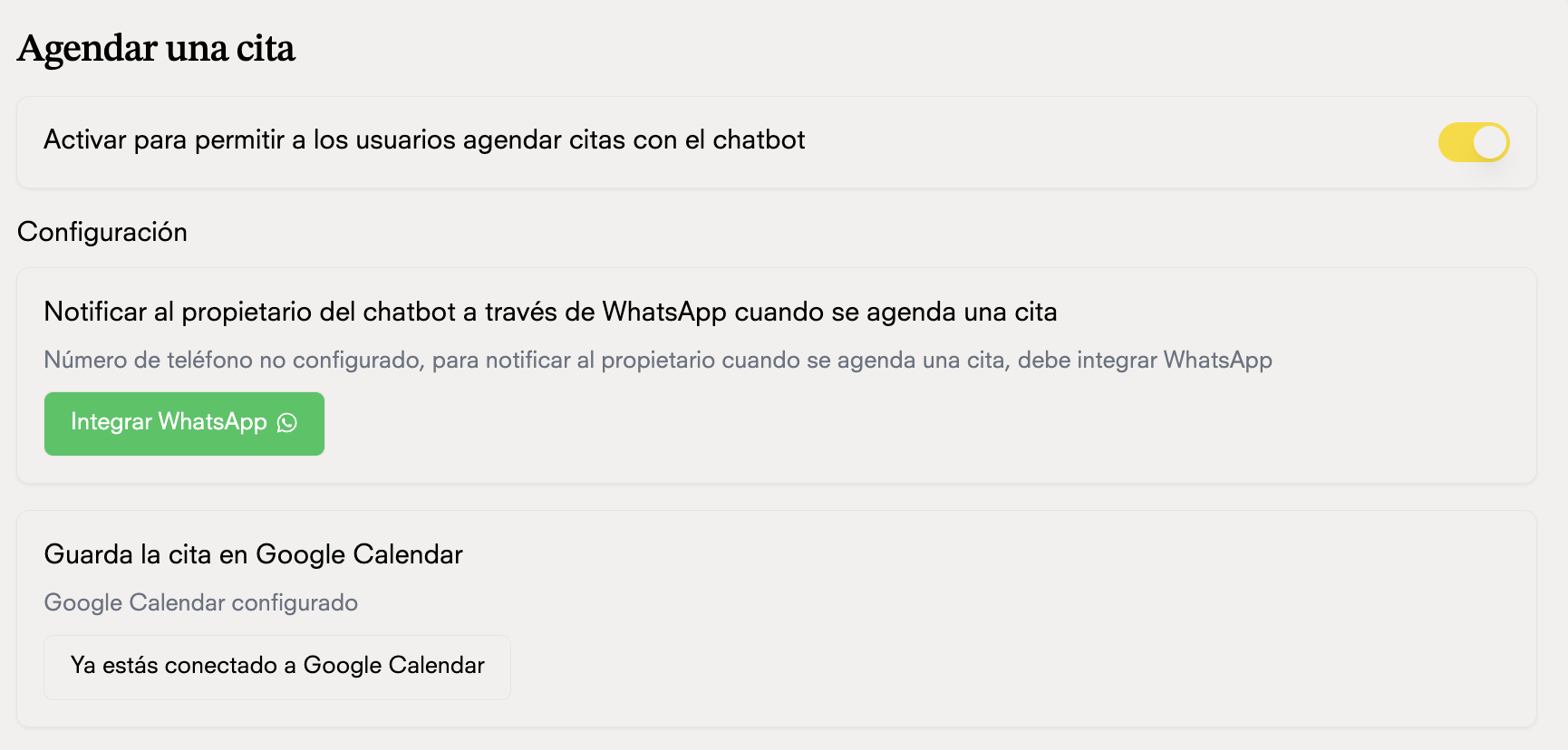
## Appointment scheduling tool

### Now that your chatbot is connected to Google Calendar, you can use the appointment scheduling tool in your calendar.
<Frame>
  <img src="https://mintcdn.com/doko/wNz10e2dI8HDdsq4/images/agendar-gc1.png?fit=max&auto=format&n=wNz10e2dI8HDdsq4&q=85&s=9ba5aa48b5592a8422ef786dafe651d2" alt="Schedule appointments" width="1730" height="828" data-path="images/agendar-gc1.png" />
</Frame>