> ## Documentation Index
> Fetch the complete documentation index at: https://docs.doko-ai.com/llms.txt
> Use this file to discover all available pages before exploring further.

# HubSpot

> Connect your account with HubSpot so your chatbot can save leads

### Integration with your HubSpot account

[Create your chatbot here](https://doko-ai.com/en/sign-up)

<Steps>
  <Step>
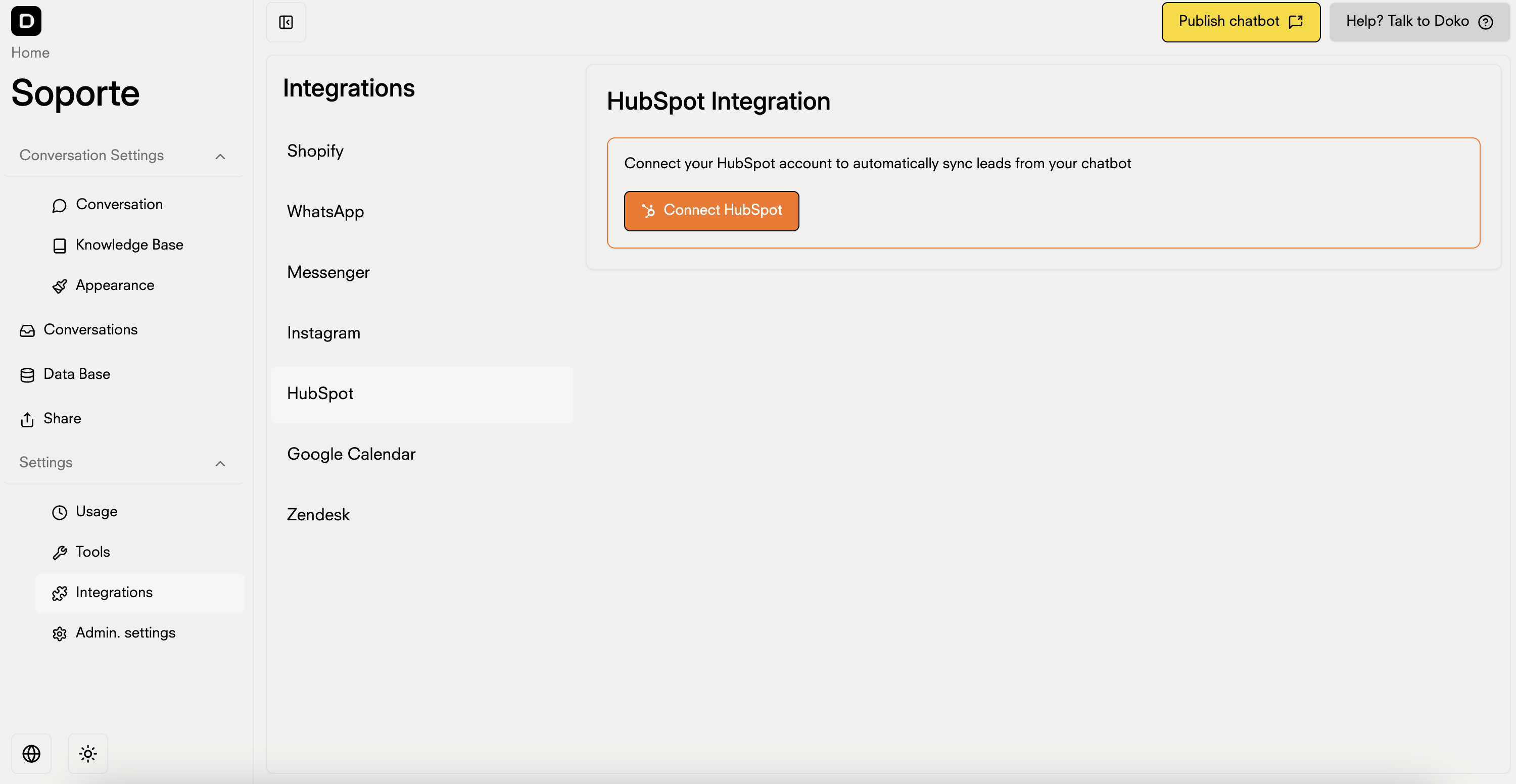
    <h3>Go to Settings>Integrations in your chatbot portal and select HubSpot</h3>

    <Frame>
      <img src="https://mintcdn.com/doko/pKbjWpjWFDIh-Q-V/images/integracion-hubspot-en.png?fit=max&auto=format&n=pKbjWpjWFDIh-Q-V&q=85&s=ef9fdd365bee9e0a717e6dc8e2ff106a" alt="Integrations" width="3000" height="1552" data-path="images/integracion-hubspot-en.png" />
    </Frame>
  </Step>

  <Step>
    <h3>Click on Connect</h3>

    <Frame>
      <img src="https://mintcdn.com/doko/wNz10e2dI8HDdsq4/images/boton-hubspot-en.png?fit=max&auto=format&n=wNz10e2dI8HDdsq4&q=85&s=744c24f5e18b1a3f4c870bc45417b904" alt="Connect" width="1040" height="290" data-path="images/boton-hubspot-en.png" />
    </Frame>
  </Step>

  <Step>
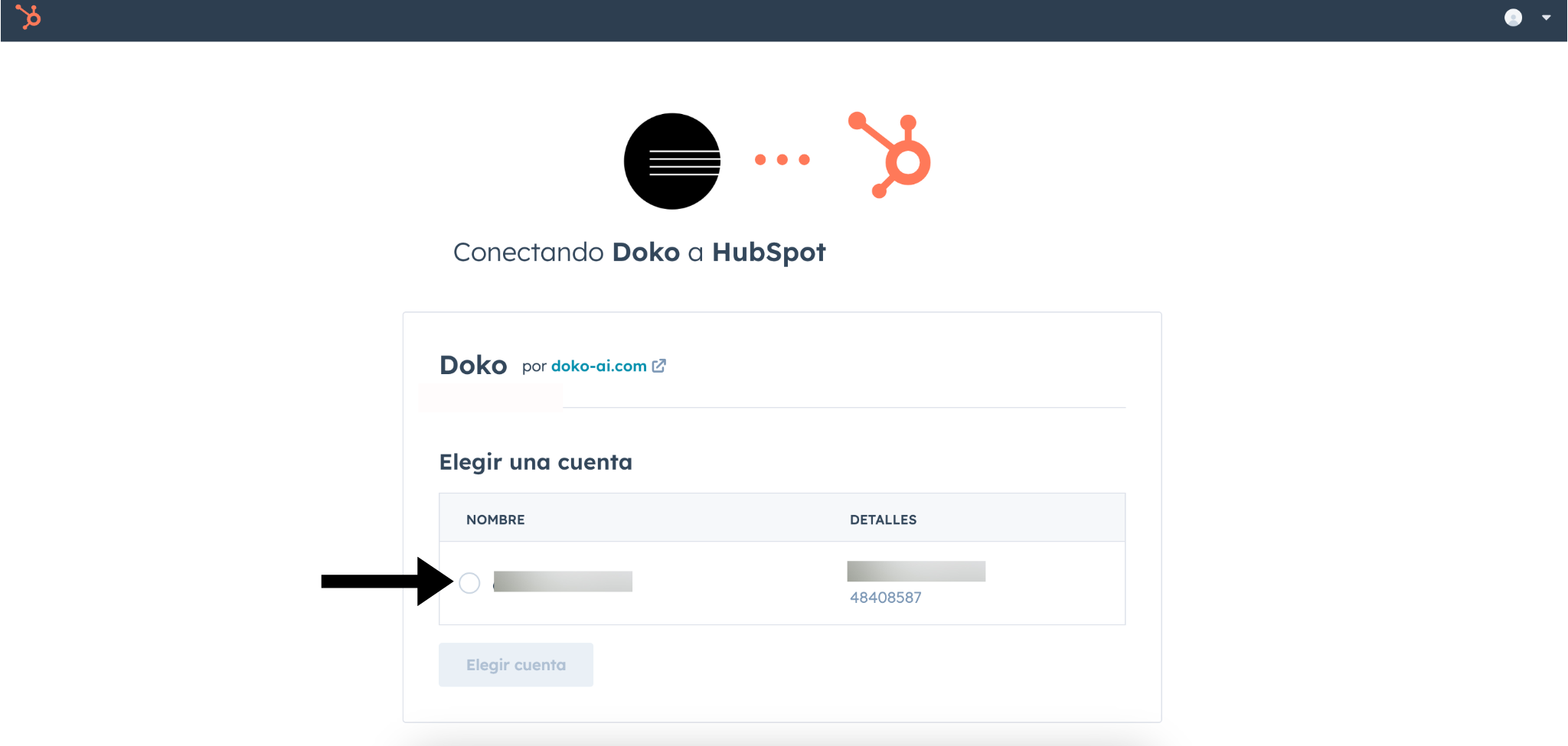
    <h3>Connect the Doko app with your HubSpot account</h3>

    <Frame>
      <img src="https://mintcdn.com/doko/pKbjWpjWFDIh-Q-V/images/hubspot-conect.png?fit=max&auto=format&n=pKbjWpjWFDIh-Q-V&q=85&s=c68c52cf68447295ab1ca60f12ea1230" alt="Connect" width="2048" height="975" data-path="images/hubspot-conect.png" />
    </Frame>
  </Step>

  <Step>
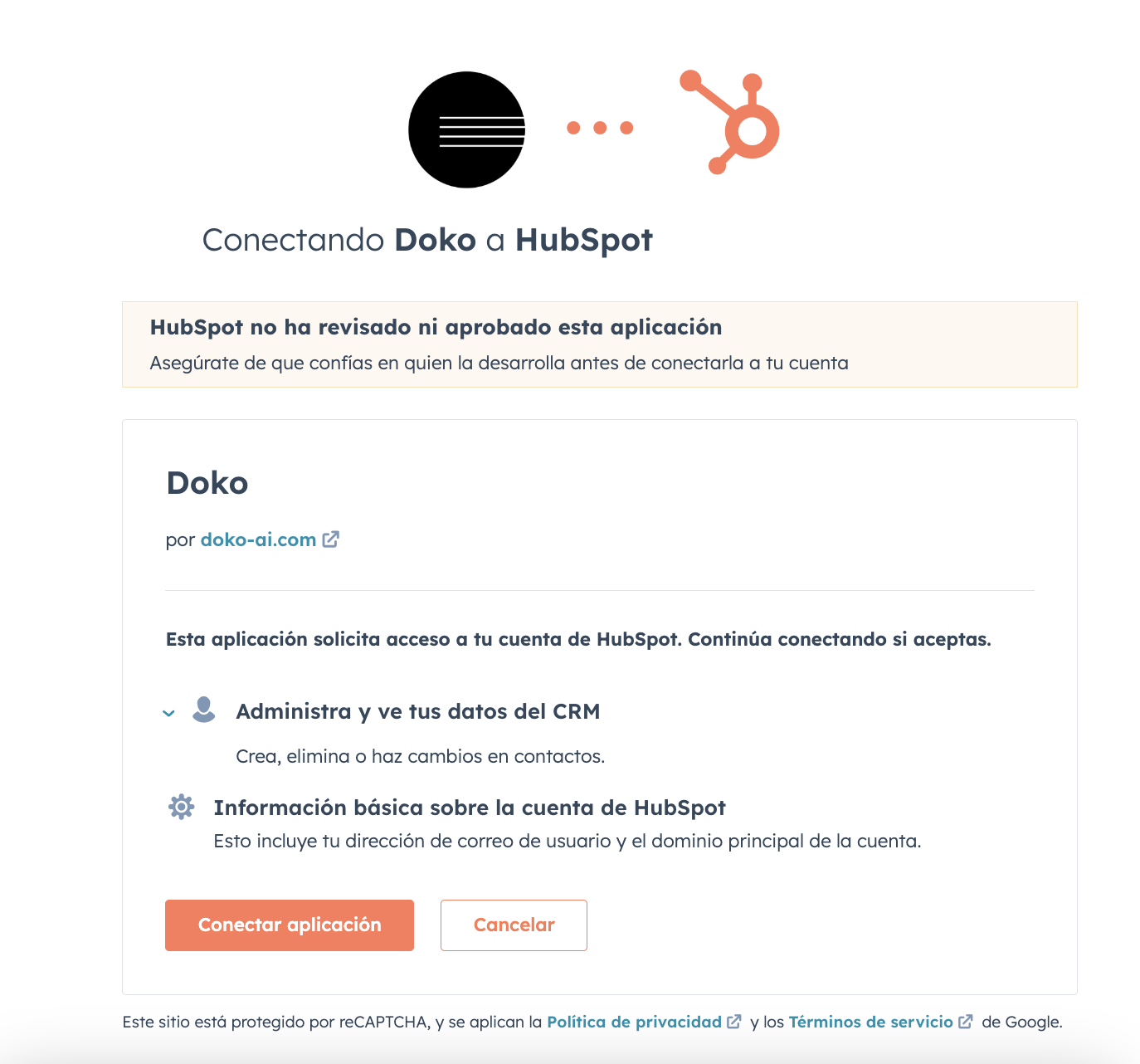
    <h3>Grant the necessary permissions for Doko to access your HubSpot account</h3>

    <Frame>
      <img src="https://mintcdn.com/doko/-p4Q5Mr8bh5M5OS8/images/permisos-hubspot.png?fit=max&auto=format&n=-p4Q5Mr8bh5M5OS8&q=85&s=cde68e5d5ed058a284a1dac835bf4d73" alt="Permissions" width="1374" height="1282" data-path="images/permisos-hubspot.png" />
    </Frame>
  </Step>

  <Step>
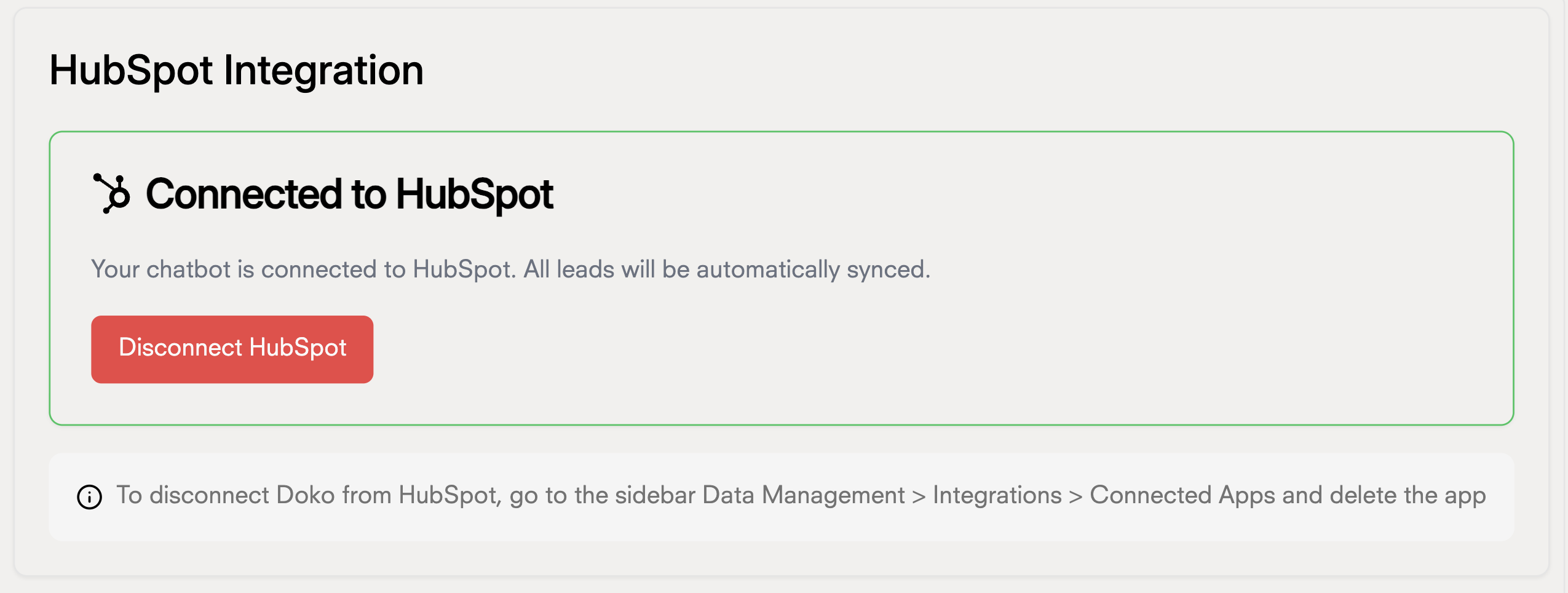
    <h3>Done! Your chatbot can now save leads to your HubSpot account</h3>

    <Frame>
      <img src="https://mintcdn.com/doko/pKbjWpjWFDIh-Q-V/images/hubspot-done-en.png?fit=max&auto=format&n=pKbjWpjWFDIh-Q-V&q=85&s=78838045224589d5ac0ebf047ac53da3" alt="Chat Bot" width="2550" height="964" data-path="images/hubspot-done-en.png" />
    </Frame>
  </Step>
</Steps>

## Lead capture tool

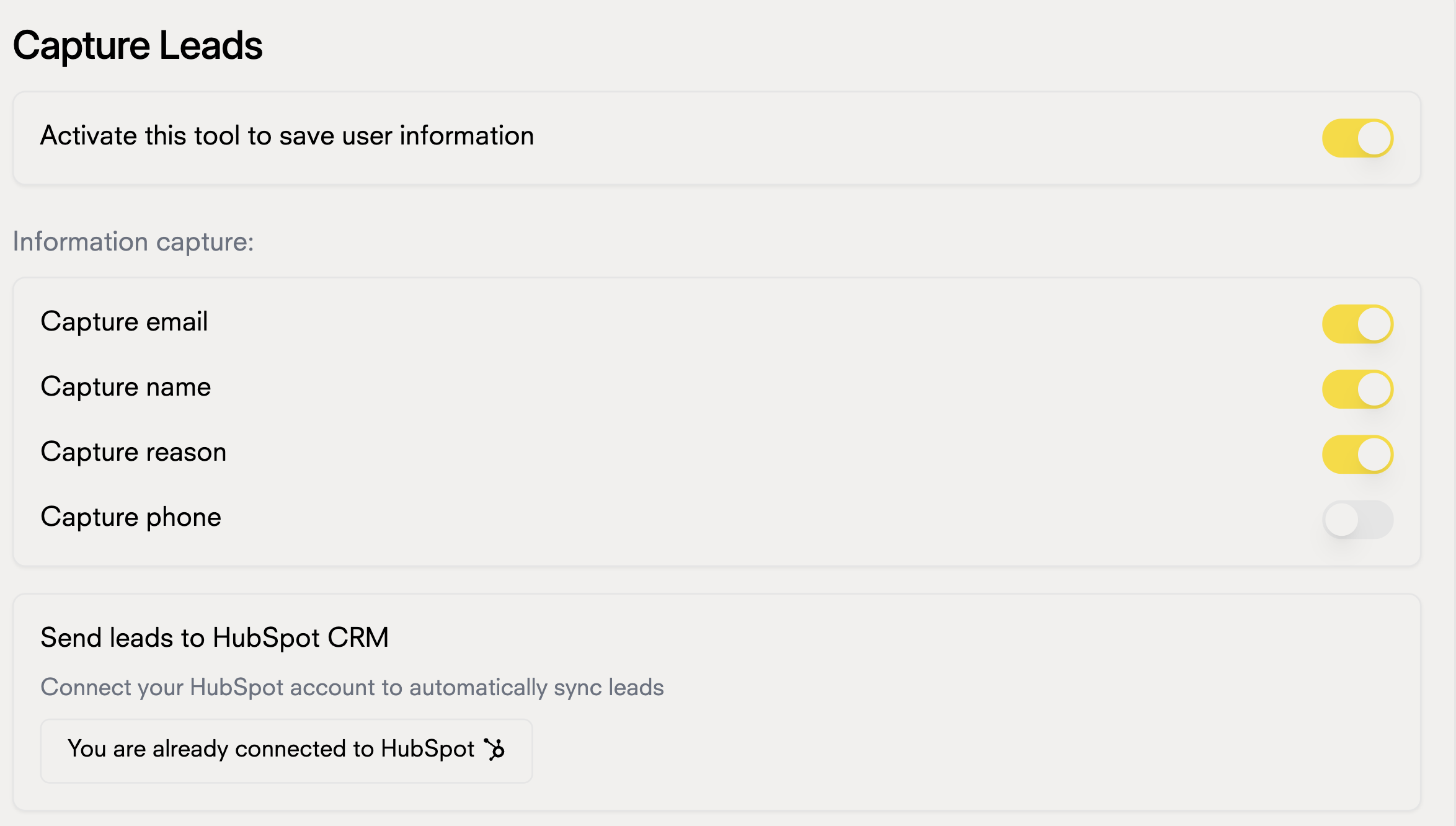
### Now that your chatbot is connected to HubSpot, you can use the lead capture tool to send your leads to your CRM.
<Frame>
  <img src="https://mintcdn.com/doko/wNz10e2dI8HDdsq4/images/captar-leads-en.png?fit=max&auto=format&n=wNz10e2dI8HDdsq4&q=85&s=385db3ca87bd8e039effd91e6ddc1f95" alt="Lead capture" width="2348" height="1332" data-path="images/captar-leads-en.png" />
</Frame>