> ## Documentation Index
> Fetch the complete documentation index at: https://docs.doko-ai.com/llms.txt
> Use this file to discover all available pages before exploring further.
# WhatsApp
> How to integrate your chatbot with WhatsApp for a smooth user experience.
## Video Tutorial
Watch the tutorial to integrate your chatbot with WhatsApp.
[Create your chatbot here](https://doko-ai.com/es/sign-up)
### Prerequisites
1. Create a Meta Business Portfolio\
You need to have a Meta Business Portfolio to use the WhatsApp integration.
You can create a business portfolio at [Meta for Business](https://www.facebook.com/business/help/1710077379203657).
2. Prepare a phone number for WhatsApp Business\
Make sure you have a phone number available that hasn't previously been registered with WhatsApp Business.
Go to Tools in your chatbot portal
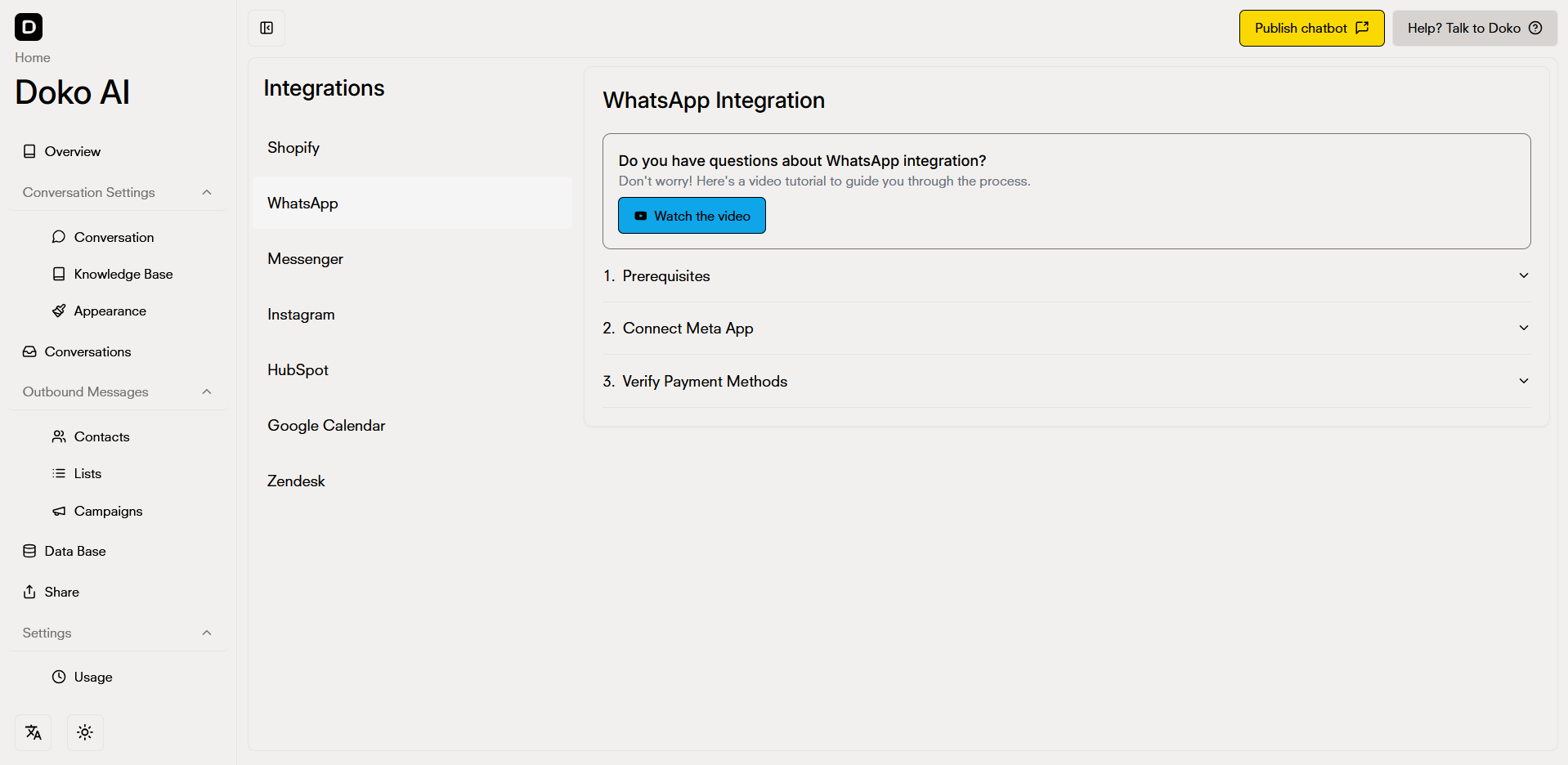
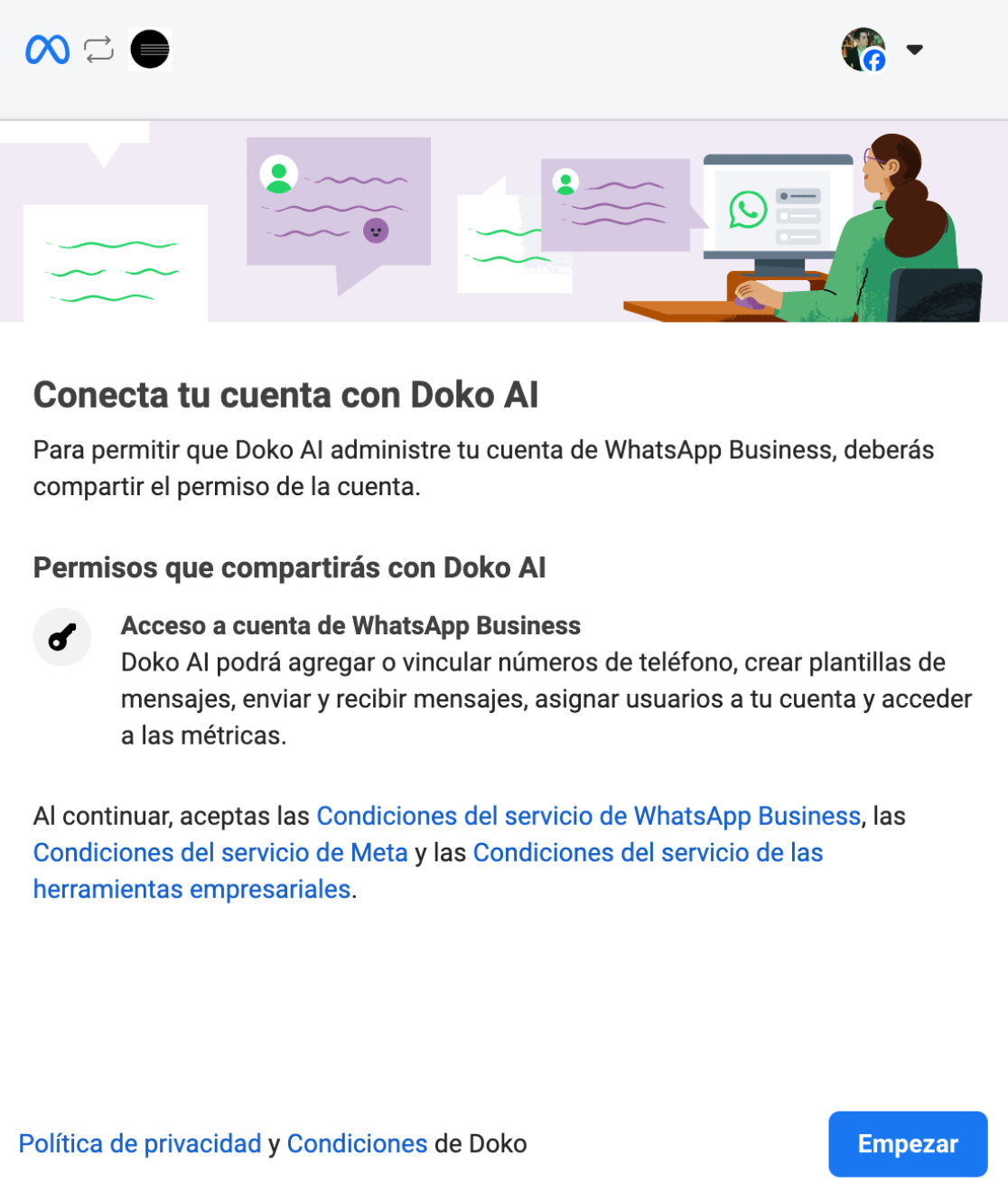
Connect your Meta Business Portfolio with Doko

Complete the login with Facebook
 Complete your business portfolio information.
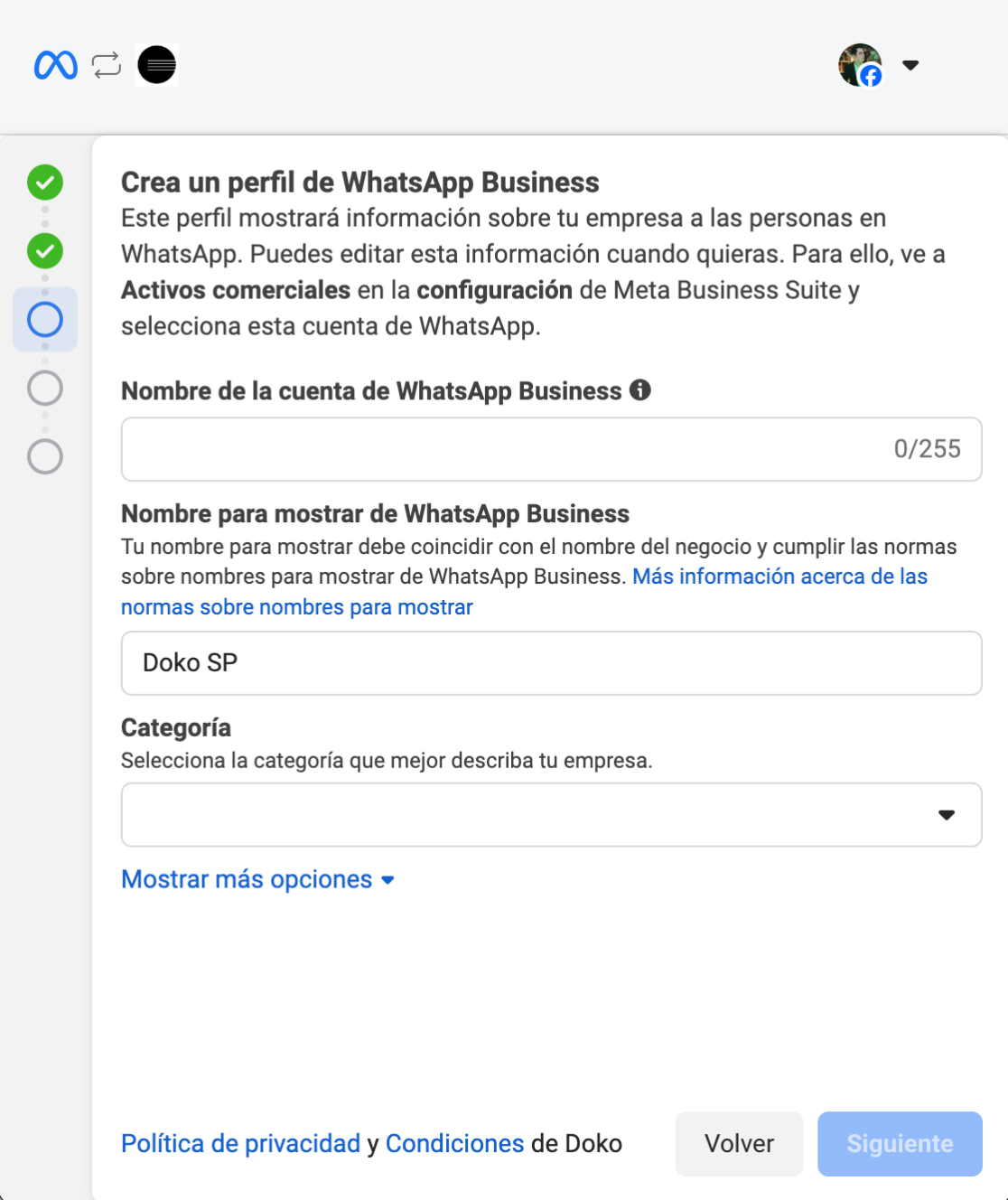
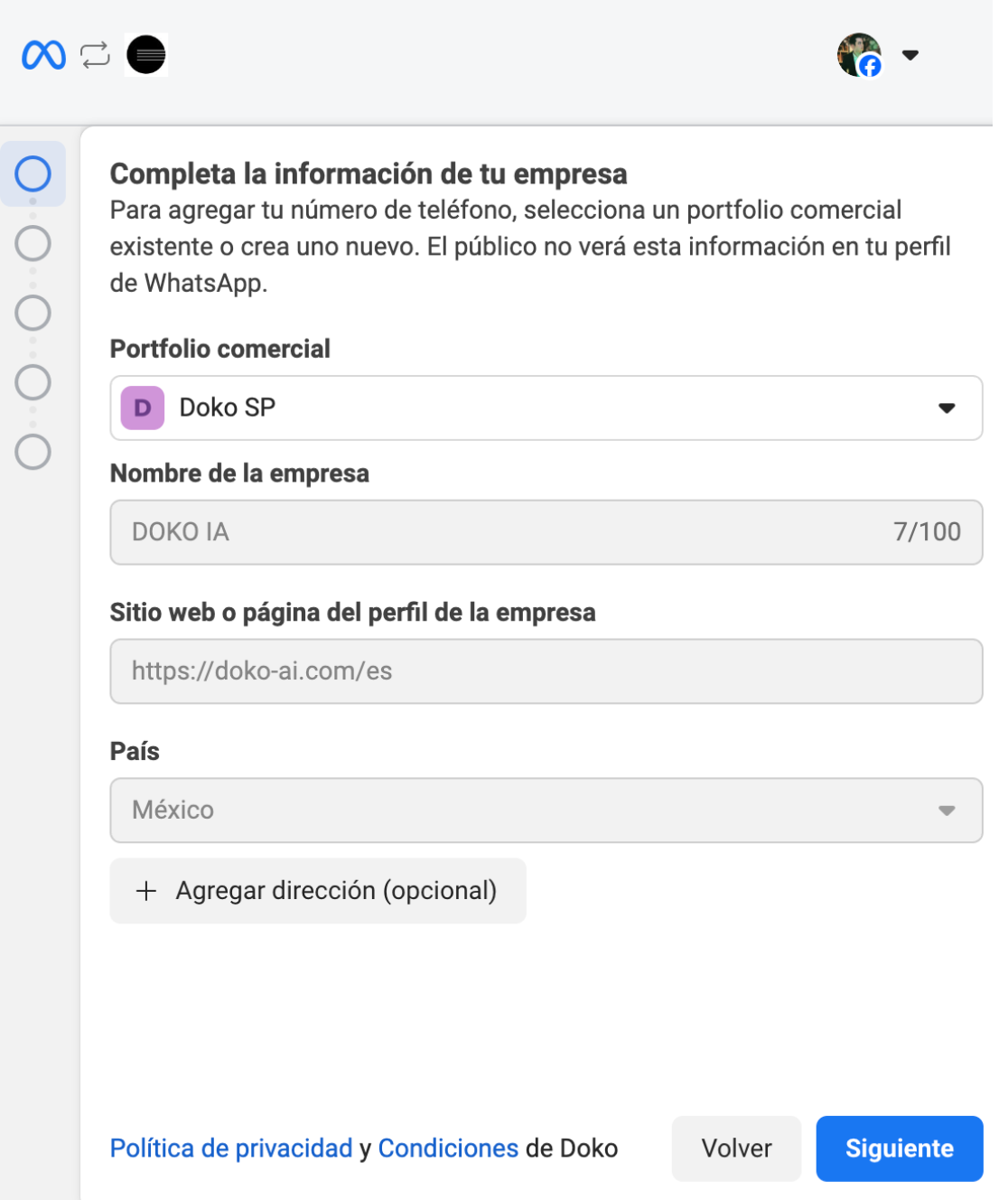 ### Option 1: Create WhatsApp Business Profile
Create your WhatsApp Business account.
### Option 1: Create WhatsApp Business Profile
Create your WhatsApp Business account.
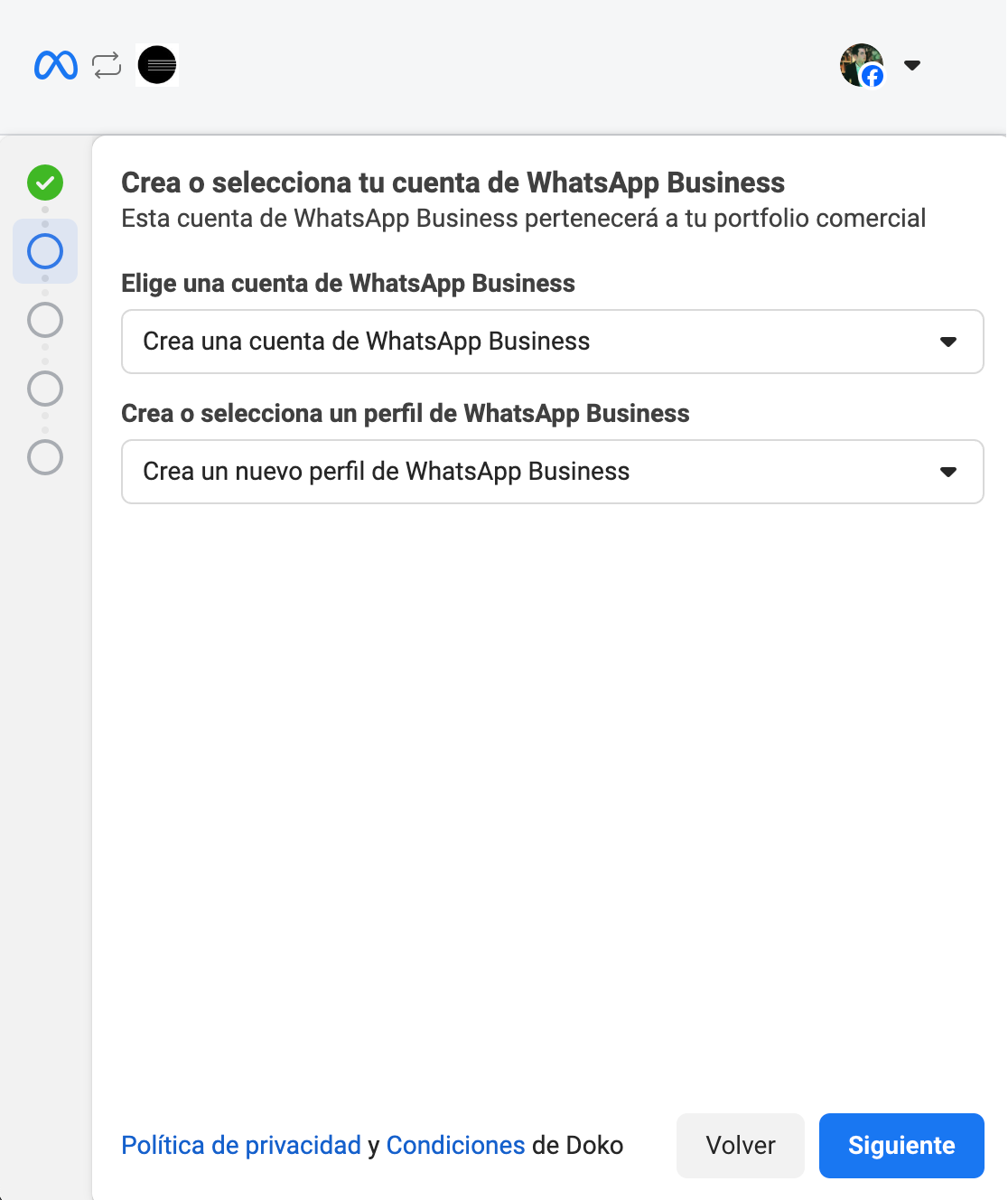 Enter your company details.
 ### Option 2: Connect WhatsApp Business
Enter your phone number to start the connection.
### Option 2: Connect WhatsApp Business
Enter your phone number to start the connection.
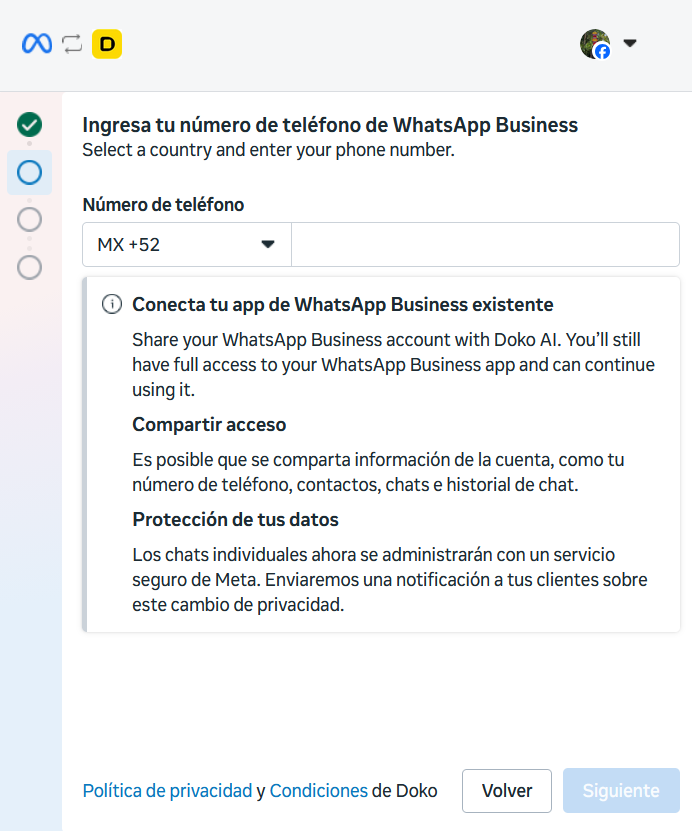 When Facebook verifies your phone number, it will take you to the next step. To confirm that you are the business owner, it will display a QR code on screen to scan and verify, but it often throws an error when generating it.
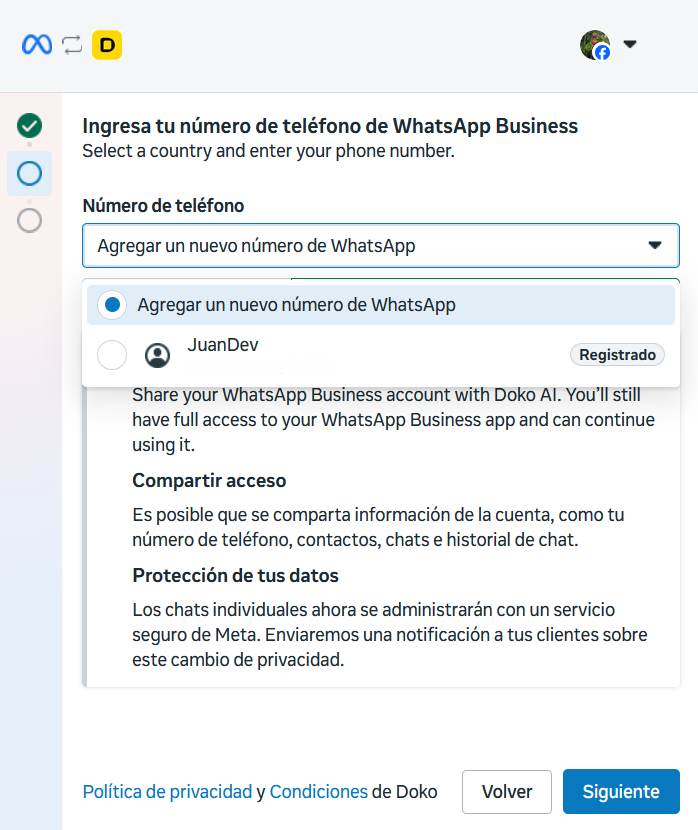
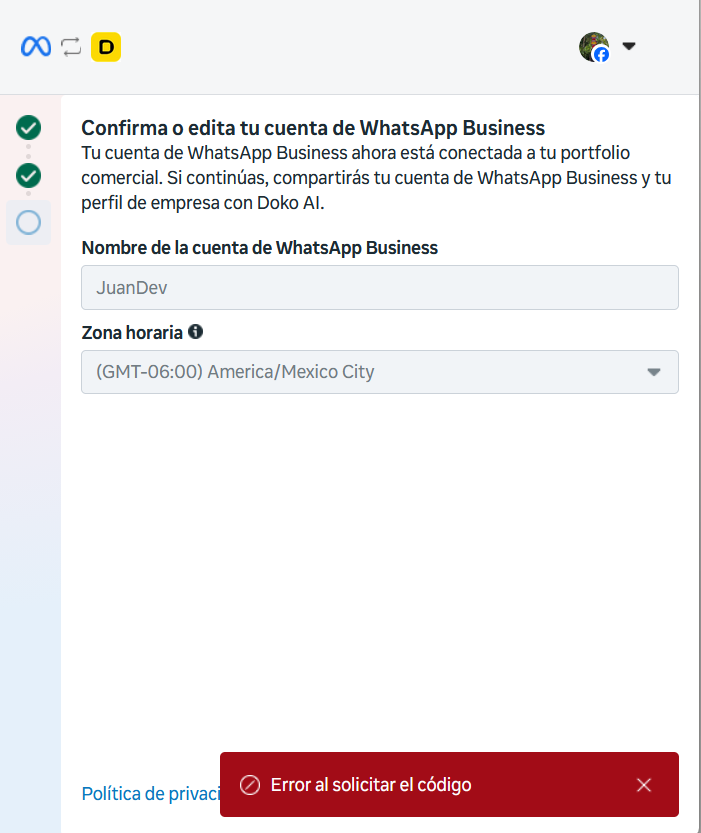 To fix the error, you must select the "Back" option to return to the previous page and re-enter the phone number.
If you select the "Add a new WhatsApp number" bar, you can choose the profile you created to proceed to the next part of the integration.
To fix the error, you must select the "Back" option to return to the previous page and re-enter the phone number.
If you select the "Add a new WhatsApp number" bar, you can choose the profile you created to proceed to the next part of the integration.
Set up a payment method
This step is required by Meta to be able to talk to your chatbot.
Please verify your payment methods to continue with the onboarding process.
You can follow this article to add a payment method to your WhatsApp Business account: [Add payment methods to your account](https://www.facebook.com/business/help/488291839463771)
Start chatting with your chatbot
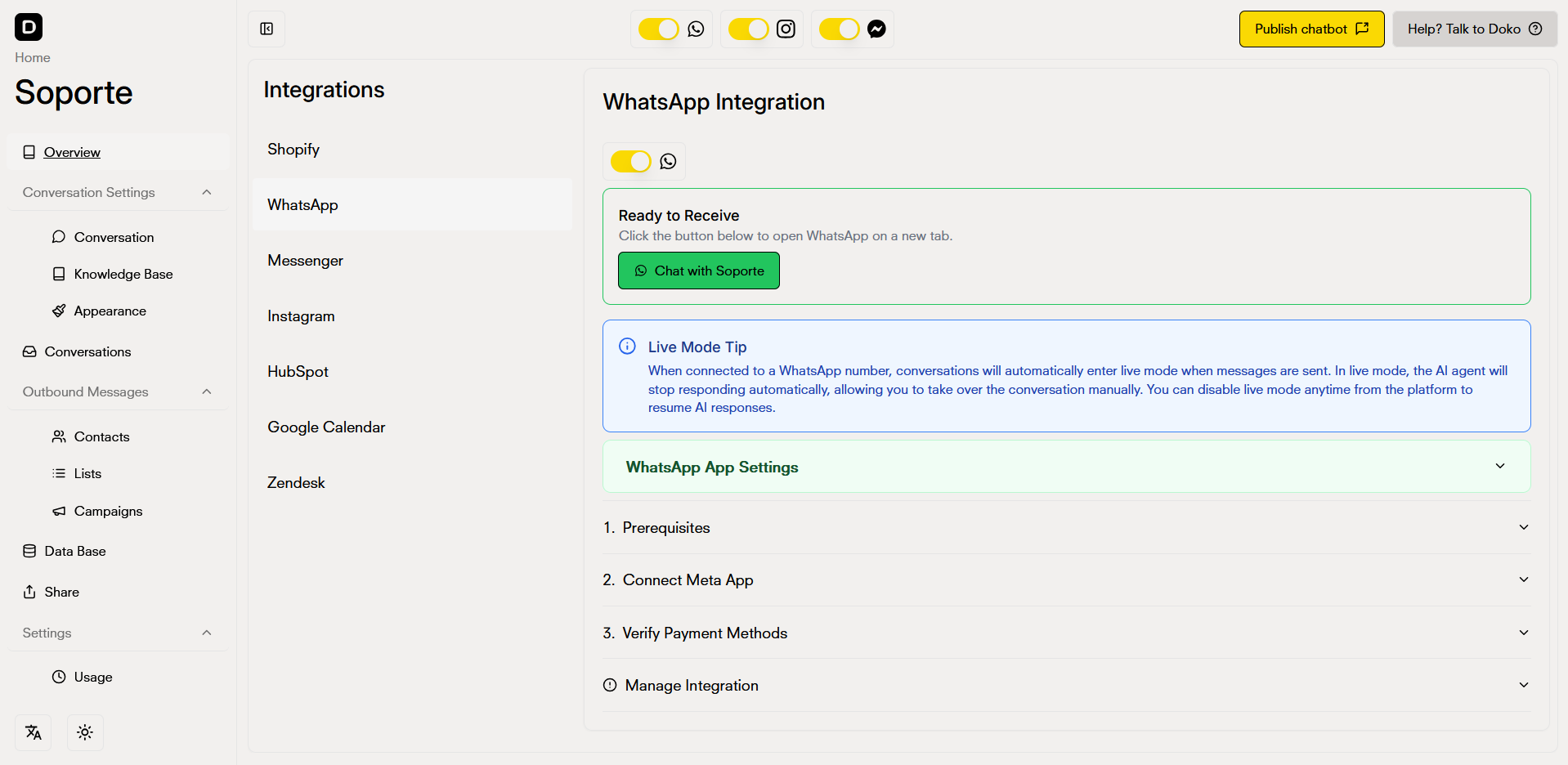 ### Live Mode
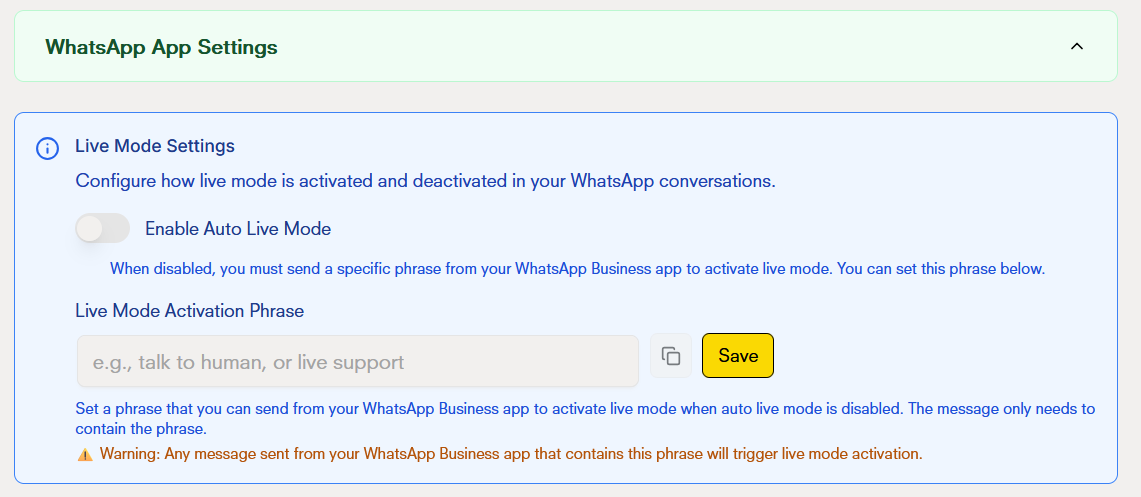
Live mode is a useful tool that allows the conversation to be transferred to a human agent.\
When activated, the bot automatically deactivates, allowing the agent to reply directly to the client’s messages.
Live chat only has two states:
* **Enabled:** any message sent to the client through WhatsApp Business will activate live mode, stopping bot responses.
* **Disabled:** requires you to manually set up an activation phrase so that when the admin sends it, the user can communicate with a human agent for support.
### Live Mode
Live mode is a useful tool that allows the conversation to be transferred to a human agent.\
When activated, the bot automatically deactivates, allowing the agent to reply directly to the client’s messages.
Live chat only has two states:
* **Enabled:** any message sent to the client through WhatsApp Business will activate live mode, stopping bot responses.
* **Disabled:** requires you to manually set up an activation phrase so that when the admin sends it, the user can communicate with a human agent for support.
 ### Reactivation
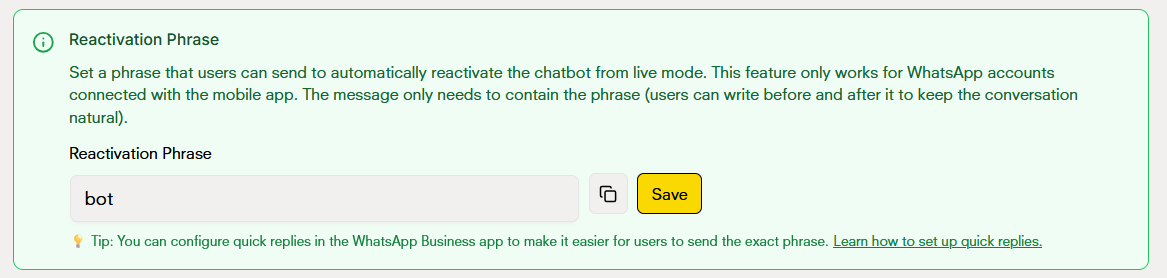
Set a phrase so users can automatically reactivate the chatbot from live mode.\
This phrase will disable live mode until further notice, allowing the bot to take control of the conversation again.
The message just needs to contain the configured phrase.
You can set up quick replies in WhatsApp Business to make it easier for users to send the exact phrase. [Learn how to set up quick replies](https://www.facebook.com/business/help/).
### Reactivation
Set a phrase so users can automatically reactivate the chatbot from live mode.\
This phrase will disable live mode until further notice, allowing the bot to take control of the conversation again.
The message just needs to contain the configured phrase.
You can set up quick replies in WhatsApp Business to make it easier for users to send the exact phrase. [Learn how to set up quick replies](https://www.facebook.com/business/help/).
 ## Next steps
Learn how to create and manage WhatsApp templates for your follow-ups and campaigns.
## Next steps
Learn how to create and manage WhatsApp templates for your follow-ups and campaigns.