> ## Documentation Index
> Fetch the complete documentation index at: https://docs.doko-ai.com/llms.txt
> Use this file to discover all available pages before exploring further.
# Abandoned Carts
> Send automatic messages to customers who abandoned their shopping cart to recover lost sales and increase your conversions through reminders.
## Configuration
 **Important:** It is of utmost importance that you add the button with the URL format in your template, in addition to having a dynamic parameter where it obtains the checkout URL.
## WhatsApp Template Configuration
Configure how abandoned cart messages will be sent to your customers via WhatsApp. Within this section, you can select the WhatsApp Business template you have previously created to customize your cart recovery messages.
**Important:** It is of utmost importance that you add the button with the URL format in your template, in addition to having a dynamic parameter where it obtains the checkout URL.
## WhatsApp Template Configuration
Configure how abandoned cart messages will be sent to your customers via WhatsApp. Within this section, you can select the WhatsApp Business template you have previously created to customize your cart recovery messages.
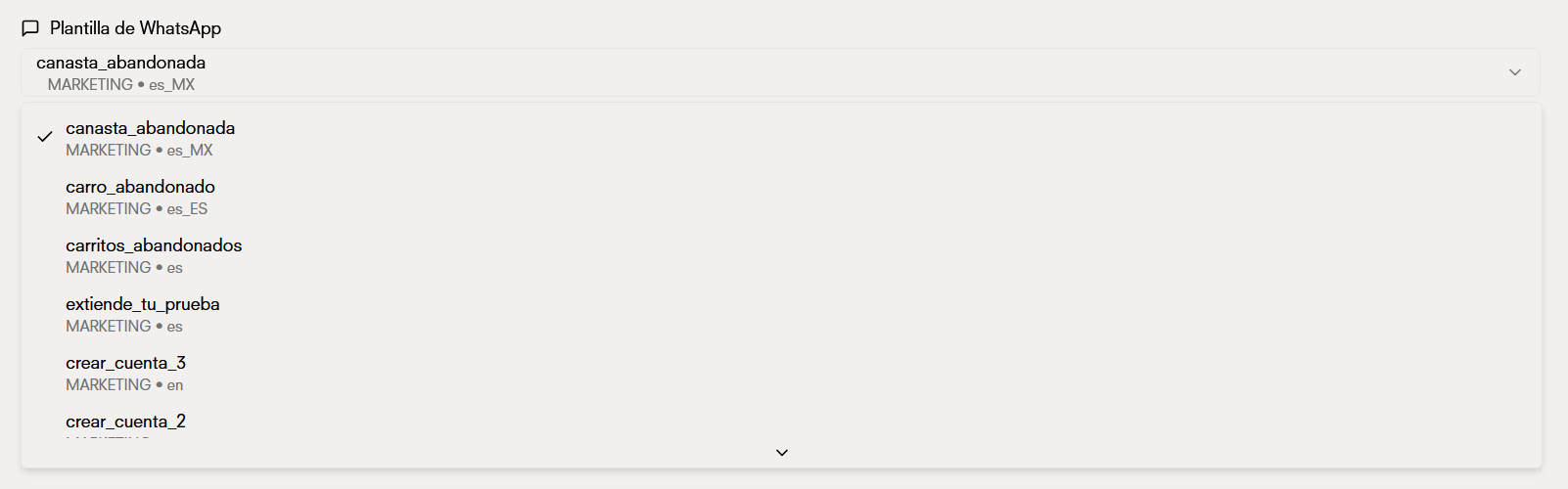 ### Days after checkout
Select how many days after the user abandons their cart the message should be sent. This allows you to choose the optimal time to contact your customers without being too intrusive.
**Example:** If you configure 1 day, customers will receive the message 24 hours after abandoning their cart.
### Days after checkout
Select how many days after the user abandons their cart the message should be sent. This allows you to choose the optimal time to contact your customers without being too intrusive.
**Example:** If you configure 1 day, customers will receive the message 24 hours after abandoning their cart.
 ### Sending time
Select the time of day when abandoned checkout messages should be sent. Messages will be sent minutes after this time, not exactly at the scheduled time.
### Sending time
Select the time of day when abandoned checkout messages should be sent. Messages will be sent minutes after this time, not exactly at the scheduled time.
 Choose a time when your customers are usually active on WhatsApp to increase the chances of response.
### Time zone
Configure the time zone for the previous sending time. Make sure to select the time zone of your region or that of most of your customers so that messages arrive at the appropriate time.
Choose a time when your customers are usually active on WhatsApp to increase the chances of response.
### Time zone
Configure the time zone for the previous sending time. Make sure to select the time zone of your region or that of most of your customers so that messages arrive at the appropriate time.
 ### Template parameters
Configure the parameters for your template, each one has a **different number of parameters** to use. These parameters customize the message for each customer.
#### Parameter 1
* **Use:** Name of the customer who will receive the message
**Parameter value:**
You can configure the value as:
* **Static text:** Fixed value for all recipients (e.g., "Dear customer")
* **Dynamic text:** The value is generated automatically using contact data (e.g., Hello, `{{name}}`! -> Hello, **John**! )
### Template parameters
Configure the parameters for your template, each one has a **different number of parameters** to use. These parameters customize the message for each customer.
#### Parameter 1
* **Use:** Name of the customer who will receive the message
**Parameter value:**
You can configure the value as:
* **Static text:** Fixed value for all recipients (e.g., "Dear customer")
* **Dynamic text:** The value is generated automatically using contact data (e.g., Hello, `{{name}}`! -> Hello, **John**! )
 #### Parameter 2
* **Use:** Action button configuration in the message
**Parameter value:**
Just like the name, you can use:
* **Static text:** A fixed value for all buttons
* **Dynamic text:** Dynamic information according to the abandoned checkout context
#### Parameter 2
* **Use:** Action button configuration in the message
**Parameter value:**
Just like the name, you can use:
* **Static text:** A fixed value for all buttons
* **Dynamic text:** Dynamic information according to the abandoned checkout context
 **Important**: For the dynamic parameter mentioned above, make sure to use the checkout URL option as the value. This dynamic route allows each customer to be directed exactly to their abandoned cart, making it easier for them to complete their purchase.
### Parameter information
Parameters are automatically mapped from the configured WhatsApp Business template. Keep in mind:
* **Static text:** The same value is used for all recipients. Useful for general messages.
* **Dynamic text:** The value is generated dynamically from available contact data. Ideal for personalization.
**Important**: For the dynamic parameter mentioned above, make sure to use the checkout URL option as the value. This dynamic route allows each customer to be directed exactly to their abandoned cart, making it easier for them to complete their purchase.
### Parameter information
Parameters are automatically mapped from the configured WhatsApp Business template. Keep in mind:
* **Static text:** The same value is used for all recipients. Useful for general messages.
* **Dynamic text:** The value is generated dynamically from available contact data. Ideal for personalization.