> ## Documentation Index
> Fetch the complete documentation index at: https://docs.doko-ai.com/llms.txt
> Use this file to discover all available pages before exploring further.
# Contacts
> Save, import, update and organize your contacts to manage and interact with them from your dashboard
 ## Why is having contacts important for your business?
Contacts are the most important part of your future interactions. When you save them in your dashboard, you can:
* Keep a record of people you or the chatbot have interacted with
* Prepare campaigns, flows and actions based on specific segments
* Initialize proactive conversations and customize them using the contact's profile data
Same as Conversations, having an organized base allows you to find who to contact much quicker
## Ways to add contacts
You have a number of ways to create or save contacts on your dashboard:
1. Save from chatbot conversations: when a user shares their data, you can save them as a contact.
2. Add manually: create a contact from the Contacts section by entering name, email, country code, and phone number.
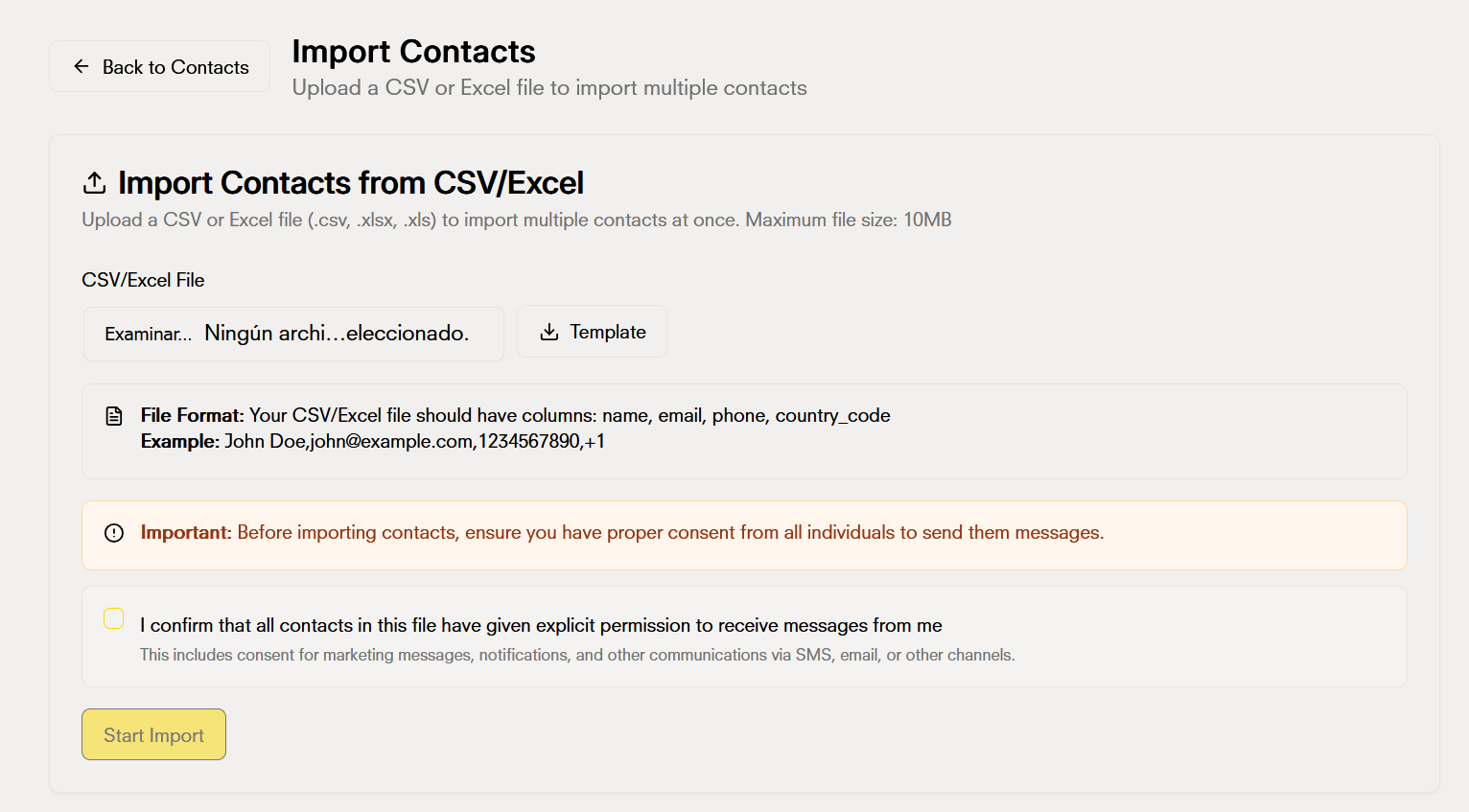
3. Import contacts (CSV): upload a file with multiple records to bulk add them.
## Why is having contacts important for your business?
Contacts are the most important part of your future interactions. When you save them in your dashboard, you can:
* Keep a record of people you or the chatbot have interacted with
* Prepare campaigns, flows and actions based on specific segments
* Initialize proactive conversations and customize them using the contact's profile data
Same as Conversations, having an organized base allows you to find who to contact much quicker
## Ways to add contacts
You have a number of ways to create or save contacts on your dashboard:
1. Save from chatbot conversations: when a user shares their data, you can save them as a contact.
2. Add manually: create a contact from the Contacts section by entering name, email, country code, and phone number.
3. Import contacts (CSV): upload a file with multiple records to bulk add them.
 ### Tips for CSV imports
* Make sure that the columns are named correctly (name, email, phone, country\_code)
* Validate emails and phone numbers before importing to minimize errors
* Handle duplicates: decide whether to update the existing contact or create a new one.
### Tips for CSV imports
* Make sure that the columns are named correctly (name, email, phone, country\_code)
* Validate emails and phone numbers before importing to minimize errors
* Handle duplicates: decide whether to update the existing contact or create a new one.
 ## Update and delete contacts
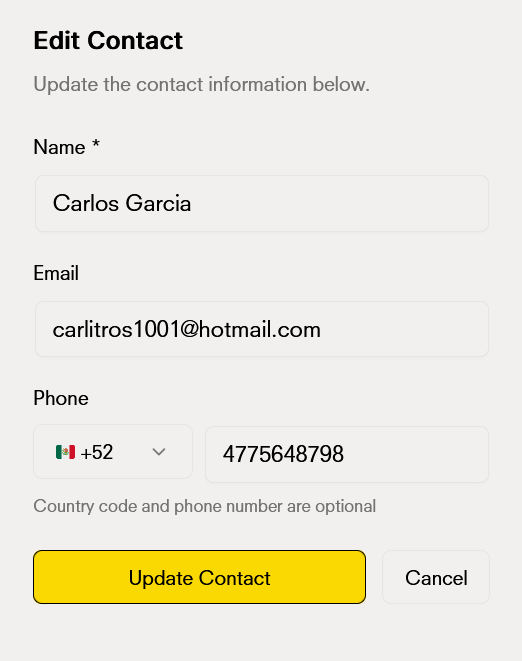
* Update: change contact fields like name, email, country code, or phone number when user data changes
* Delete: remove contacts that you no longer need to maintain in your database
Both actions are available from the list and on the contact detail.
## Update and delete contacts
* Update: change contact fields like name, email, country code, or phone number when user data changes
* Delete: remove contacts that you no longer need to maintain in your database
Both actions are available from the list and on the contact detail.
 ## Filters and organizing the list
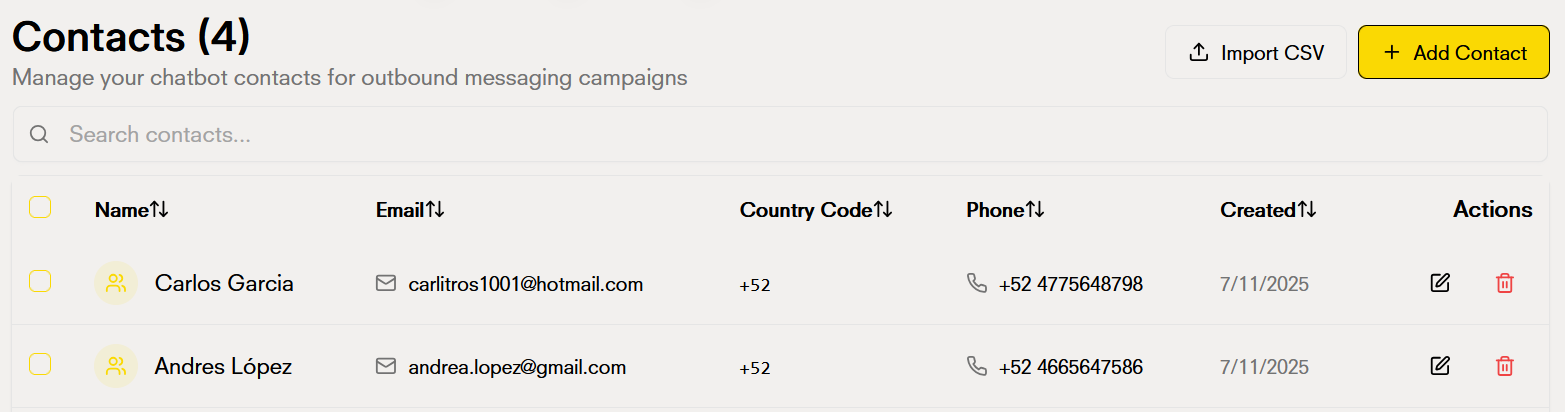
Organize and quickly find who you're looking for. You can filter and sort by:
* Name
* Email
* Country code
* Phone number
* Creation date
These criteria help you segment and prioritize your actions, similar to how you can filter by state in Conversations.
## Filters and organizing the list
Organize and quickly find who you're looking for. You can filter and sort by:
* Name
* Email
* Country code
* Phone number
* Creation date
These criteria help you segment and prioritize your actions, similar to how you can filter by state in Conversations.
 ## Best practices
* Data quality: validate emails and phone numbers
* Segmentation: use filters and sorting to build actionable lists
* Maintenance: update or delete outdated contacts to keep a clean base
## Best practices
* Data quality: validate emails and phone numbers
* Segmentation: use filters and sorting to build actionable lists
* Maintenance: update or delete outdated contacts to keep a clean base