> ## Documentation Index
> Fetch the complete documentation index at: https://docs.doko-ai.com/llms.txt
> Use this file to discover all available pages before exploring further.
# Lists
> Save a set of contacts using the lists feature. With this tool, you can categorize your contacts or keep track of a specific group of people.
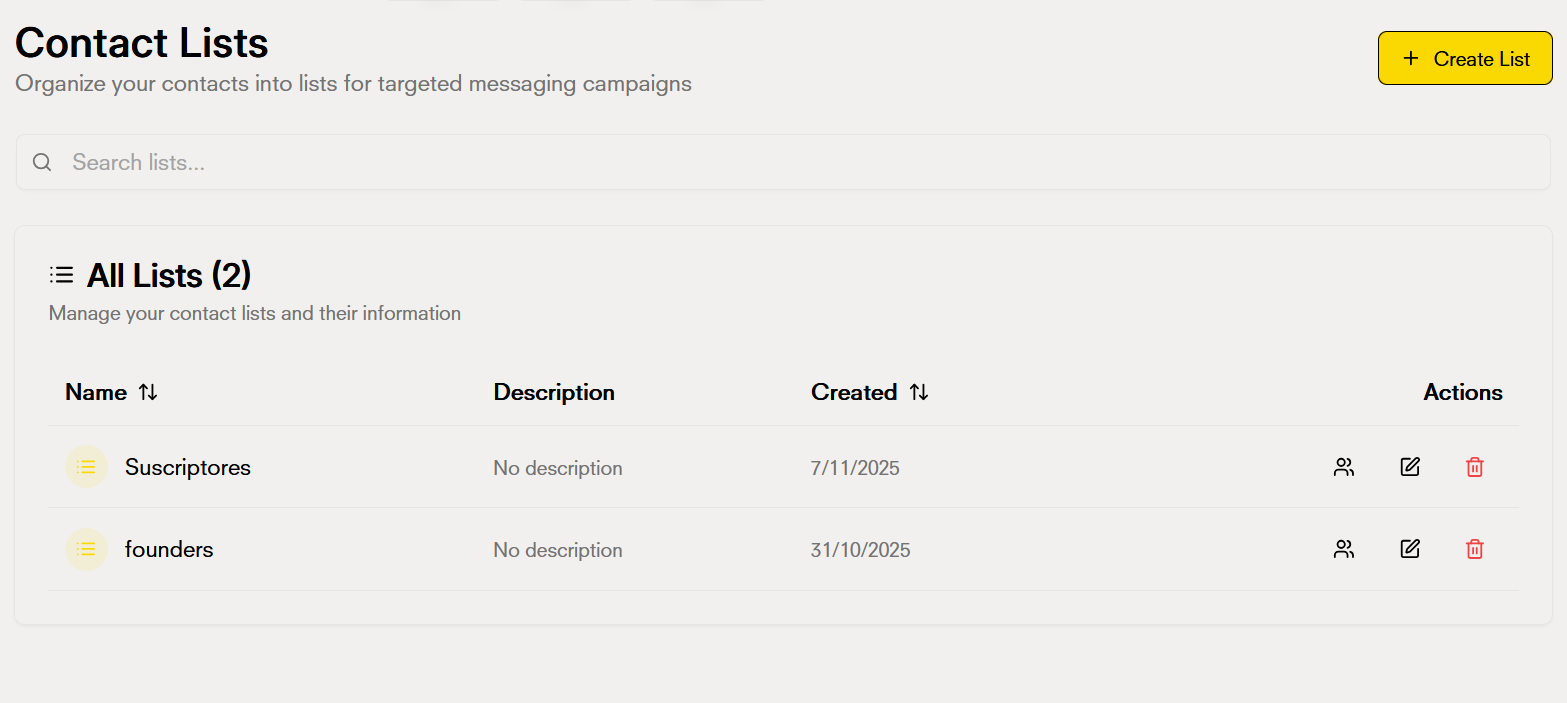 ## What are lists in Doko?
Lists allow you to group and organize your contacts strategically. By creating lists, you can:
* Segment your audience into specific groups for targeted campaigns
* Organize contacts by categories, interests, or any criteria you need
* Manage multiple contacts collectively rather than individually
* Make it easier to create personalized campaigns and flows for specific groups
## Start adding lists
To create a new list, you need:
**Name**: Assign a descriptive name that helps you quickly identify the purpose of the list
**Description**: Add an optional description with more details about the content or purpose of the list
## What are lists in Doko?
Lists allow you to group and organize your contacts strategically. By creating lists, you can:
* Segment your audience into specific groups for targeted campaigns
* Organize contacts by categories, interests, or any criteria you need
* Manage multiple contacts collectively rather than individually
* Make it easier to create personalized campaigns and flows for specific groups
## Start adding lists
To create a new list, you need:
**Name**: Assign a descriptive name that helps you quickly identify the purpose of the list
**Description**: Add an optional description with more details about the content or purpose of the list
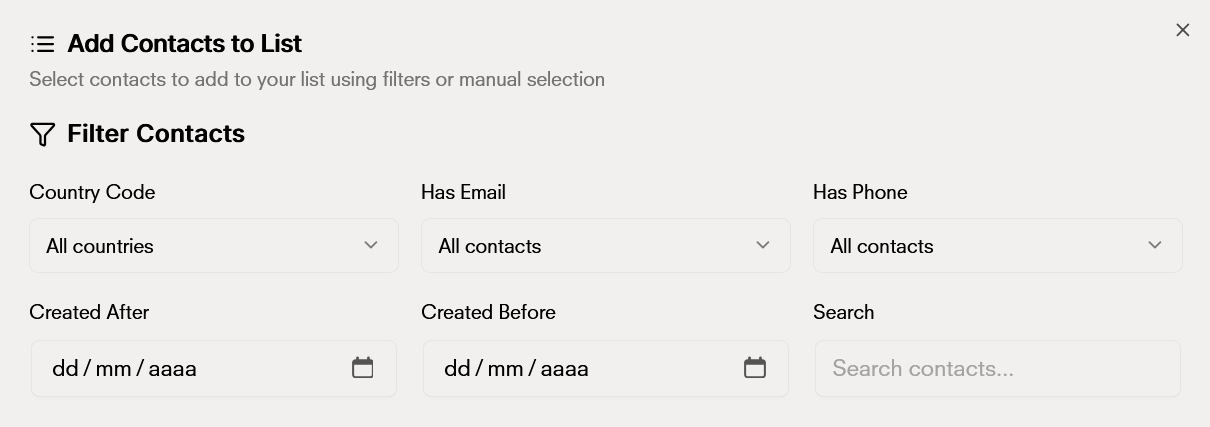
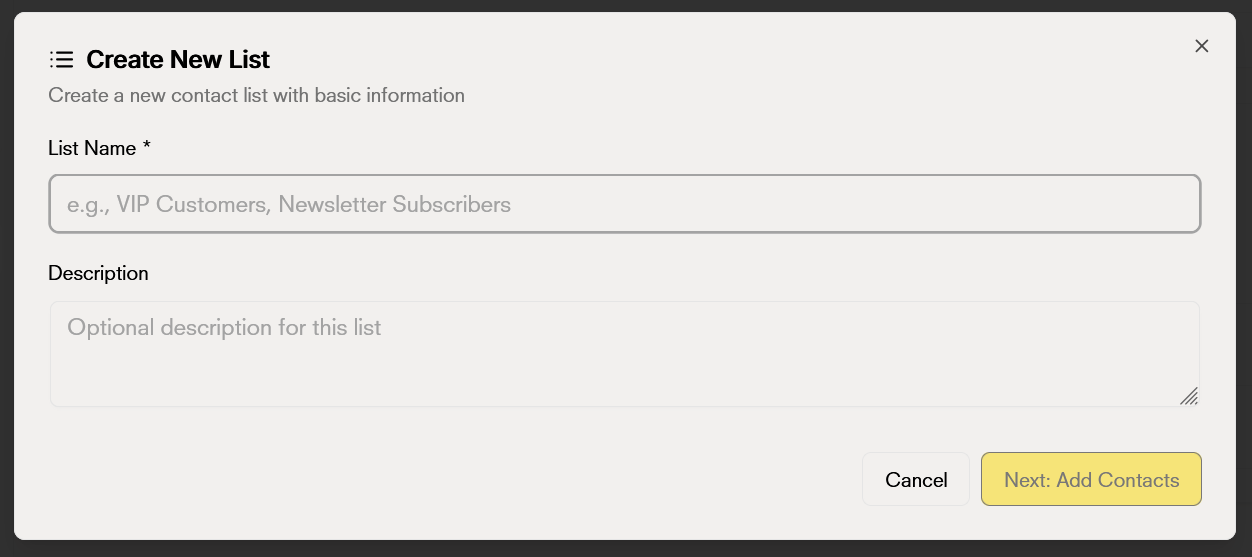 Once you have defined the name and description, it's time to select the contacts that will be part of your list. You can use filters to quickly find the contacts you need:
**Available filters:**
* **Country code**: Filter contacts by specific country or select "All countries" to see all
* **Has Email**: Filter contacts that have or don't have a registered email address
* **Has Phone**: Filter contacts that have or don't have a registered phone number
* **Created after**: Select a date to see only contacts created from that date onwards
* **Created before**: Select a date to see only contacts created up to that date
* **Search**: Use the search bar to find specific contacts by name or any other data
Once you have defined the name and description, it's time to select the contacts that will be part of your list. You can use filters to quickly find the contacts you need:
**Available filters:**
* **Country code**: Filter contacts by specific country or select "All countries" to see all
* **Has Email**: Filter contacts that have or don't have a registered email address
* **Has Phone**: Filter contacts that have or don't have a registered phone number
* **Created after**: Select a date to see only contacts created from that date onwards
* **Created before**: Select a date to see only contacts created up to that date
* **Search**: Use the search bar to find specific contacts by name or any other data
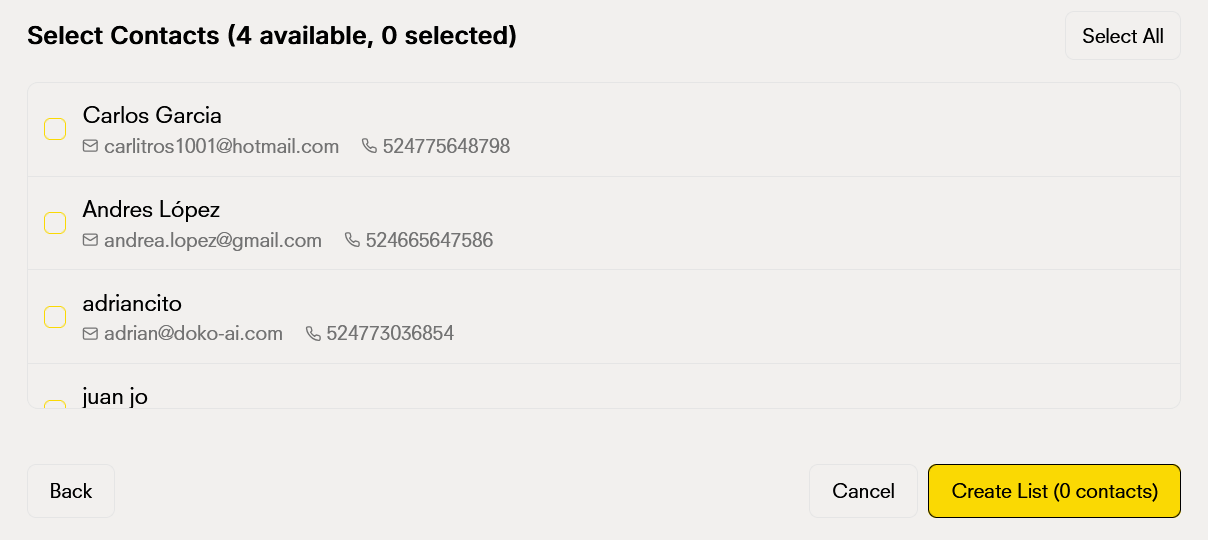
 Finally, just select the contacts you want to be in the list, press the create list button and your list will be created
 ## Edit lists
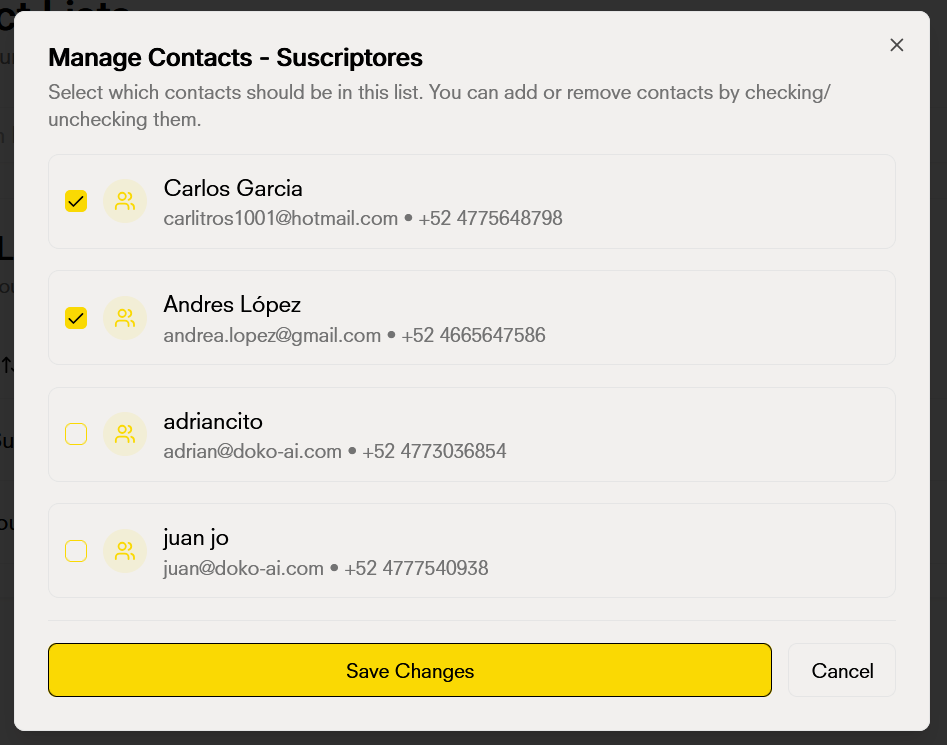
Lists are flexible and you can modify them at any time:
* **Add contacts**: Add new contacts to an existing list when you need them
* **Remove contacts**: Remove contacts from the list without affecting the contacts themselves (you only remove them from that list)
* **Change name**: Update the list name to better reflect its content or purpose
* **Modify description**: Edit the description to keep it up to date
All these actions are available from the list detail or from the options menu.
## Edit lists
Lists are flexible and you can modify them at any time:
* **Add contacts**: Add new contacts to an existing list when you need them
* **Remove contacts**: Remove contacts from the list without affecting the contacts themselves (you only remove them from that list)
* **Change name**: Update the list name to better reflect its content or purpose
* **Modify description**: Edit the description to keep it up to date
All these actions are available from the list detail or from the options menu.
 ## Delete lists
If you no longer need a list, you can delete it completely. This action:
* Deletes the list and its configuration
* **Does not delete contacts**: The contacts that were in the list remain in your database
* Is a permanent action, so make sure you really want to delete it
## View contacts in a list
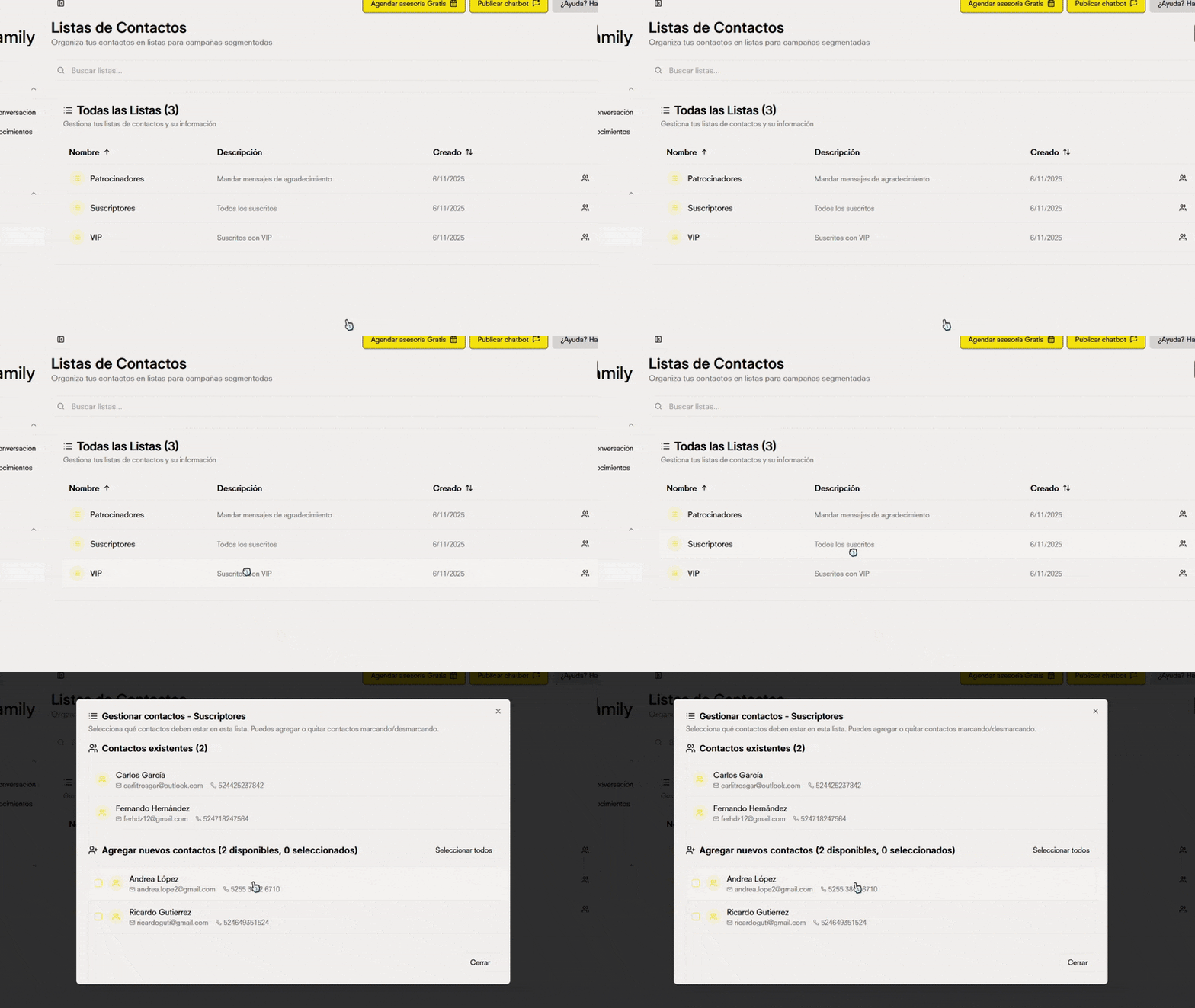
When you click on a list, you can see all the contacts it contains. This view allows you to:
* See the full detail of each contact included in the list
* Manage contacts directly from the list view
* See statistics such as the total number of contacts in the list
## Delete lists
If you no longer need a list, you can delete it completely. This action:
* Deletes the list and its configuration
* **Does not delete contacts**: The contacts that were in the list remain in your database
* Is a permanent action, so make sure you really want to delete it
## View contacts in a list
When you click on a list, you can see all the contacts it contains. This view allows you to:
* See the full detail of each contact included in the list
* Manage contacts directly from the list view
* See statistics such as the total number of contacts in the list
 ## Search and filters
Quickly find the list you need using the search and filtering tools:
* **Search bar**: Search lists by name by typing in the search field
* **Sort by name**: Organize lists alphabetically (A-Z or Z-A)
* **Sort by creation date**: View the most recent lists first or the oldest ones
These filters help you navigate efficiently when you have many lists created
## Search and filters
Quickly find the list you need using the search and filtering tools:
* **Search bar**: Search lists by name by typing in the search field
* **Sort by name**: Organize lists alphabetically (A-Z or Z-A)
* **Sort by creation date**: View the most recent lists first or the oldest ones
These filters help you navigate efficiently when you have many lists created