> ## Documentation Index
> Fetch the complete documentation index at: https://docs.doko-ai.com/llms.txt
> Use this file to discover all available pages before exploring further.

# WhatsApp Templates

> Create, manage and publish templates for your upcoming campaigns

<Warning>
  WhatsApp requires pre-approved message templates for business-initiated conversations.
  They are generally approved by Meta within 24 hours.
</Warning>

## What are WhatsApp templates?

WhatsApp templates are pre-approved messages by Meta that allow you to initiate conversations with your customers. Unlike regular messages, templates allow you to send promotional messages, notifications, and updates to users who haven't started a conversation with you.

With templates you can:

* **Send promotional messages**: Share offers, promotions, and events with your contacts
* **Important notifications**: Inform about changes, updates, or reminders
* **Personalization**: Use dynamic parameters to personalize each message
* **Categorization**: Organize your templates by categories (marketing, utility, authentication)

<Tip>Templates are essential for mass marketing campaigns and maintaining proactive communication with your customers</Tip>

## Prerequisites

Before creating your first template, make sure you have:

1. **Active WhatsApp integration**: You must have the WhatsApp Business integration configured and active
2. **Meta Business Portfolio**: You need a verified business portfolio in Meta
3. **WhatsApp Business number**: Your number must be verified and active

<Warning>Without an active WhatsApp integration, you won't be able to create or manage templates</Warning>

## Main templates view

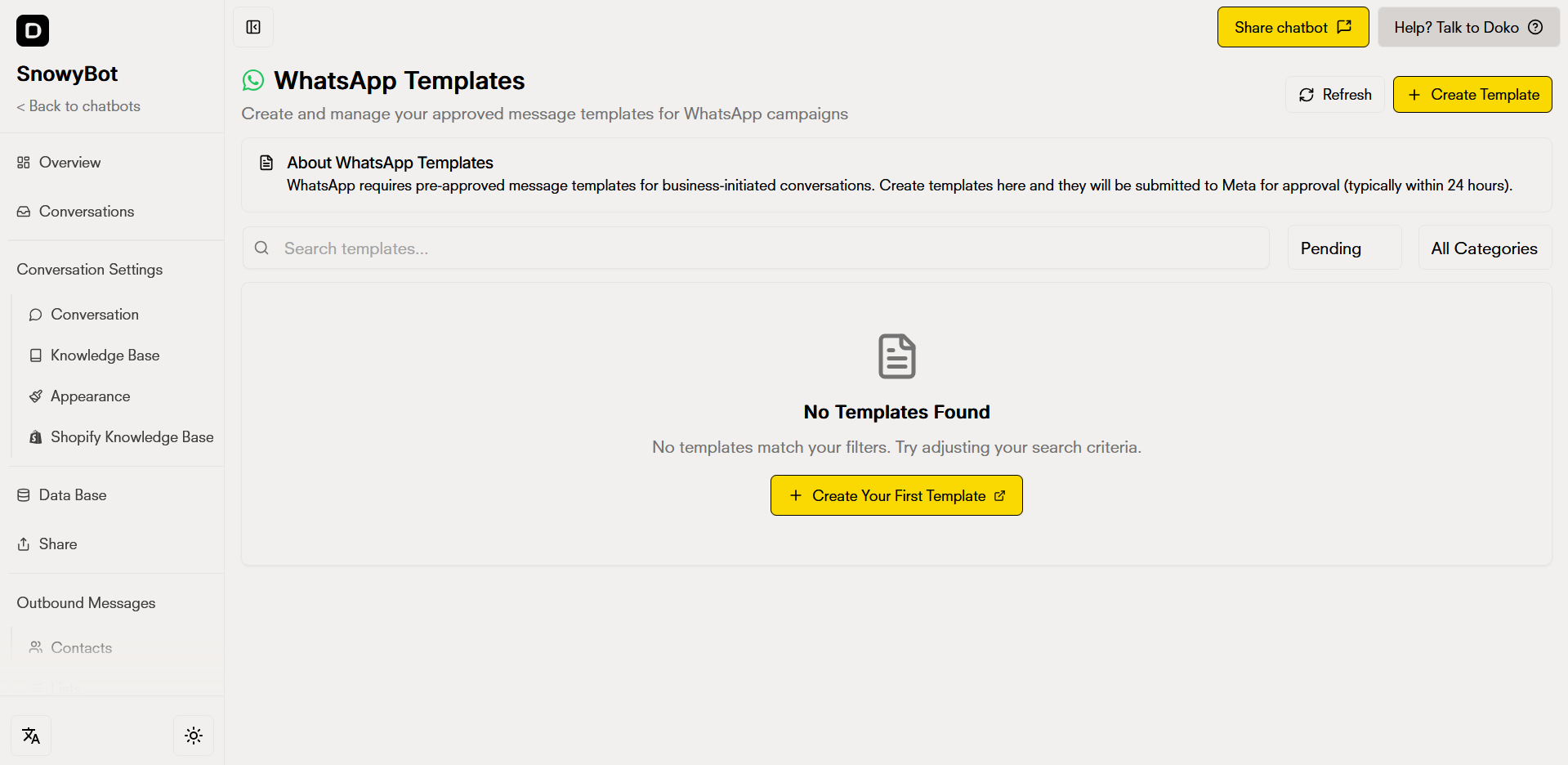
The main templates view allows you to manage all your WhatsApp templates from a single place. Here you'll find all the tools you need to manage your pre-approved messages.

<Frame>
  <img src="https://mintcdn.com/doko/SNNEOEVDbaXJZU2D/images/mensajes/en/plantilla-view.png?fit=max&auto=format&n=SNNEOEVDbaXJZU2D&q=85&s=e0fc220ce10e3c48ed9985c16168da54" alt="Main templates view" width="1919" height="936" data-path="images/mensajes/en/plantilla-view.png" />
</Frame>

### Main view features

<CardGroup cols={2}>
  <Card title="Templates list" icon="list">
    View all your created templates with information about their name, approval status, and category.
  </Card>

  <Card title="Refresh button" icon="refresh">
    Update the templates list to see the latest changes and approval statuses from Meta.
  </Card>

  <Card title="Advanced search" icon="search">
    Search templates by name, approval status, or category to quickly find what you need.
  </Card>

  <Card title="Create new template" icon="plus">
    Access the template creation form with one click to start creating your new template.
  </Card>
</CardGroup>

### Refresh and search templates

To update your templates information, click the **Refresh** button located at the top of the page. The search function allows you to find templates by:

* **Name**: Search for specific templates by typing their name
* **Approval status**: Filter by approved, pending, rejected, or paused
* **Category**: Organize by Marketing, Utility, or Authentication

<Frame>
  <img src="https://mintcdn.com/doko/SNNEOEVDbaXJZU2D/images/mensajes/en/filtros.png?fit=max&auto=format&n=SNNEOEVDbaXJZU2D&q=85&s=9a1291f45b31dc1437e30bfeb497f9cd" alt="Search and filters" width="1642" height="74" data-path="images/mensajes/en/filtros.png" />
</Frame>

### Information displayed for each template

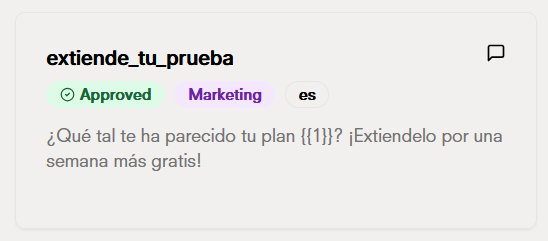
Each template in the list shows important information:
<Frame>
  <img src="https://mintcdn.com/doko/SNNEOEVDbaXJZU2D/images/mensajes/card.png?fit=max&auto=format&n=SNNEOEVDbaXJZU2D&q=85&s=2c1a6df543f9086f3c2ec299d7fe59ad" alt="Template card" width="548" height="241" data-path="images/mensajes/card.png" />
</Frame>

* **Template name**: The name you gave to the template
* **Approval status**: Visual indicator of the status (approved, pending, rejected)
* **Category**: Template type (marketing, utility, authentication)
* **Message preview**: A sample of how the message will look

## Create a new template

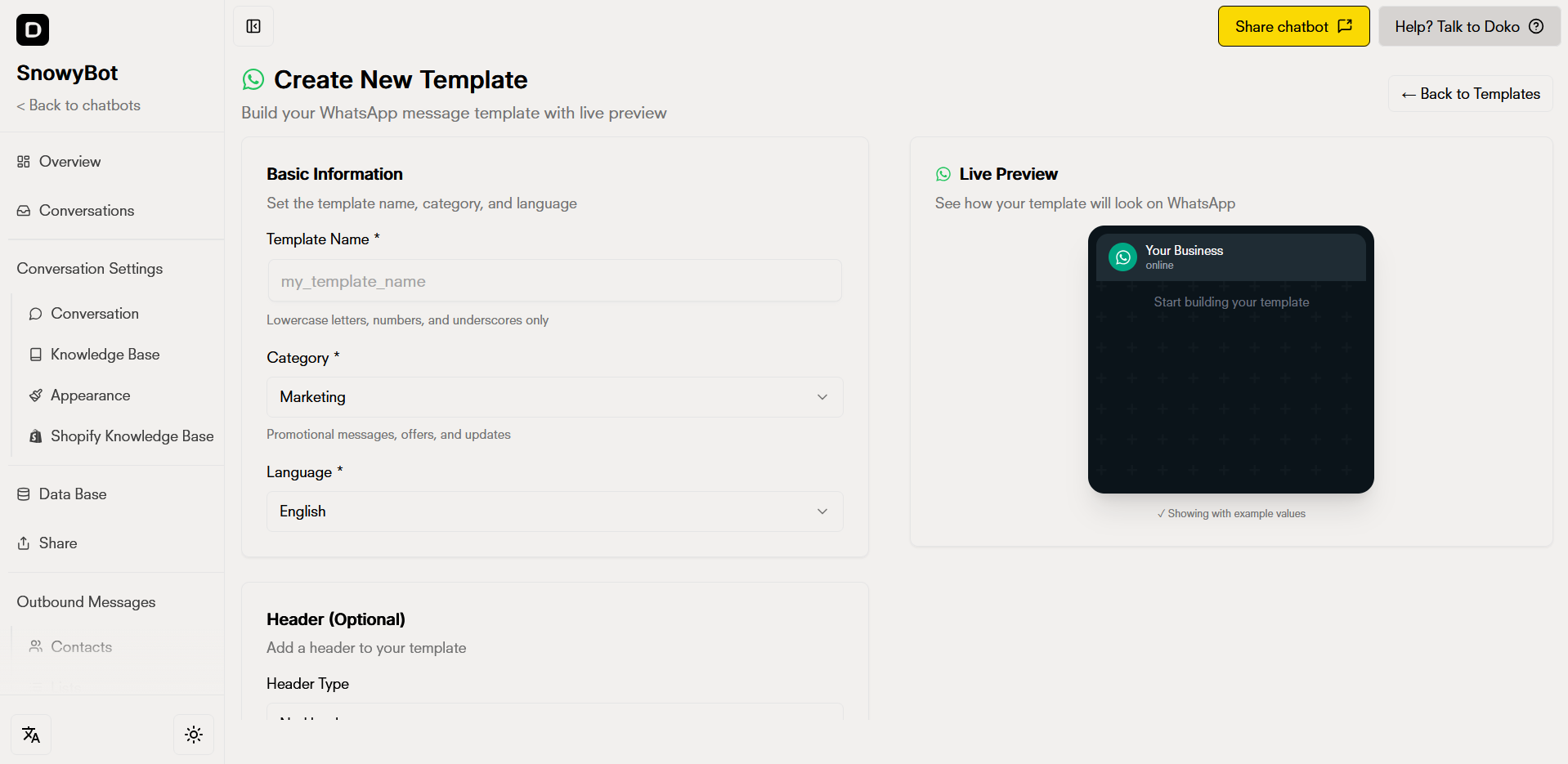
To create a new WhatsApp template, click the **"Create Template"** button located at the top right of the main page. The creation form includes a **live preview** that updates automatically as you build your template.
<Frame>
  <img src="https://mintcdn.com/doko/SNNEOEVDbaXJZU2D/images/mensajes/en/crear-plantilla.png?fit=max&auto=format&n=SNNEOEVDbaXJZU2D&q=85&s=cff1cc27e8f0c33f9ea0b7db703ab9b8" alt="Creation form" width="1918" height="935" data-path="images/mensajes/en/crear-plantilla.png" />
</Frame>

<Steps>
  <Step>
    <h3>1. Basic information</h3>
    <p>Configure the fundamental data of your template:</p>

    <Frame>
      <img src="https://mintlify.s3.us-west-1.amazonaws.com/doko/images/mensajes/en/info-basic.png" alt="Basic information" />
    </Frame>

    <h4>Template Name \*</h4>
    <p>Assign a unique and descriptive name.</p>

    <ul>
      <li>Must be unique (cannot duplicate existing names)</li>
      <li>Valid example: <code>promotion\_black\_friday\_2024</code></li>
    </ul>

    <h4>Category \*</h4>
    <p>Choose the category that best describes the purpose:</p>

    <ul>
      <li><strong>MARKETING</strong>: Promotional messages, offers, and commercial updates</li>
      <li><strong>UTILITY</strong>: Transaction notifications, account updates, reminders</li>
      <li><strong>AUTHENTICATION</strong>: Verification codes and security</li>
    </ul>

    <h4>Language \*</h4>
    <p>Select the language in which your template content is written.</p>
    <Warning>The selected category must match the actual content. Meta may reject templates with incorrect categories</Warning>
  </Step>

  <Step>
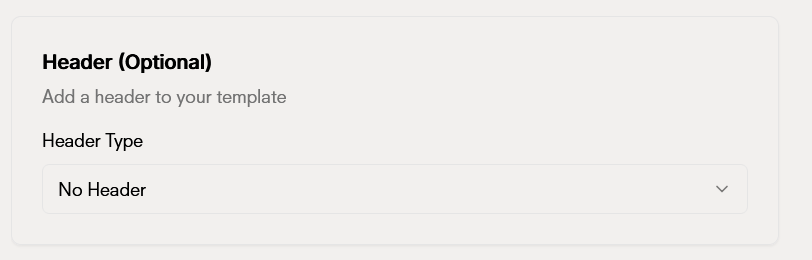
    <h3>2. Header (Optional)</h3>
    <p>Add a header to your template by selecting the header type:</p>

    <Frame>
      <img src="https://mintcdn.com/doko/SNNEOEVDbaXJZU2D/images/mensajes/en/header.png?fit=max&auto=format&n=SNNEOEVDbaXJZU2D&q=85&s=e4a4a62e8a48d00d48ecc3dac711752d" alt="Template header" width="812" height="260" data-path="images/mensajes/en/header.png" />
    </Frame>

    <ul>
      <li><strong>Text</strong>: Up to 60 characters</li>
      <li><strong>Image</strong>: JPG, PNG, or GIF</li>
      <li><strong>Video</strong>: MP4</li>
      <li><strong>Document</strong>: PDF</li>
    </ul>
  </Step>

  <Step>
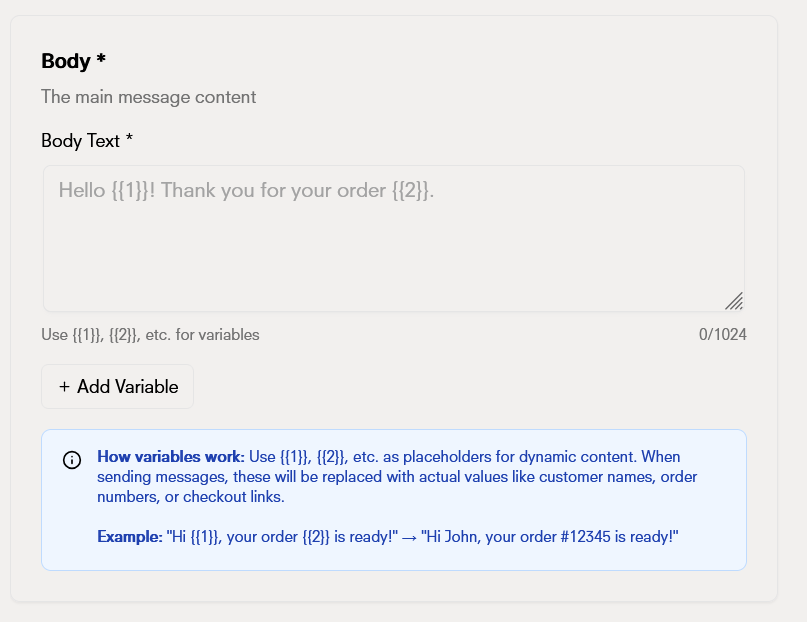
    <h3>3. Message body \*</h3>
    <p>Write the main content of your template. This will be the message your contacts will receive.</p>

    <Frame>
      <img src="https://mintcdn.com/doko/SNNEOEVDbaXJZU2D/images/mensajes/en/body.png?fit=max&auto=format&n=SNNEOEVDbaXJZU2D&q=85&s=f88eff72520e184845c8b14c98f60f92" alt="Message content" width="807" height="622" data-path="images/mensajes/en/body.png" />
    </Frame>

    <h4>How variables work</h4>
    <p>Use <code>{`{{1}}`}</code>, <code>{`{{2}}`}</code>, <code>{`{{3}}`}</code>, etc. as placeholders for dynamic content. When sending messages, these will be replaced with real values such as customer names, order numbers, or checkout links.</p>
    <p><strong>Example:</strong></p>

    <pre>
      Hello {`{{1}}`}, your order {`{{2}}`} is ready!
    </pre>

    <p>Will become:</p>

    <pre>
      Hello John, your order #12345 is ready!
    </pre>

    <Tip>Use variables to personalize messages with specific information from each contact</Tip>
  </Step>

  <Step>
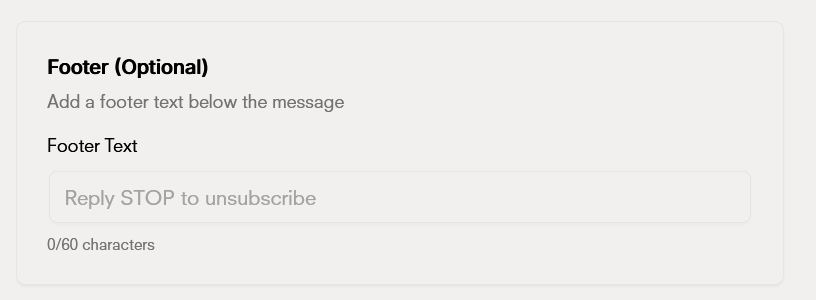
    <h3>4. Footer (Optional)</h3>
    <p>Add a footer text below the message. Ideal for contact information, legal terms, or calls to action.</p>

    <Frame>
      <img src="https://mintcdn.com/doko/SNNEOEVDbaXJZU2D/images/mensajes/en/footer.png?fit=max&auto=format&n=SNNEOEVDbaXJZU2D&q=85&s=5d887c7254e0d1808204742ff6bef278" alt="Footer" width="816" height="300" data-path="images/mensajes/en/footer.png" />
    </Frame>

    <p><strong>Requirements:</strong></p>

    <ul>
      <li>Maximum 60 characters</li>
      <li>Cannot contain dynamic parameters</li>
    </ul>
  </Step>

  <Step>
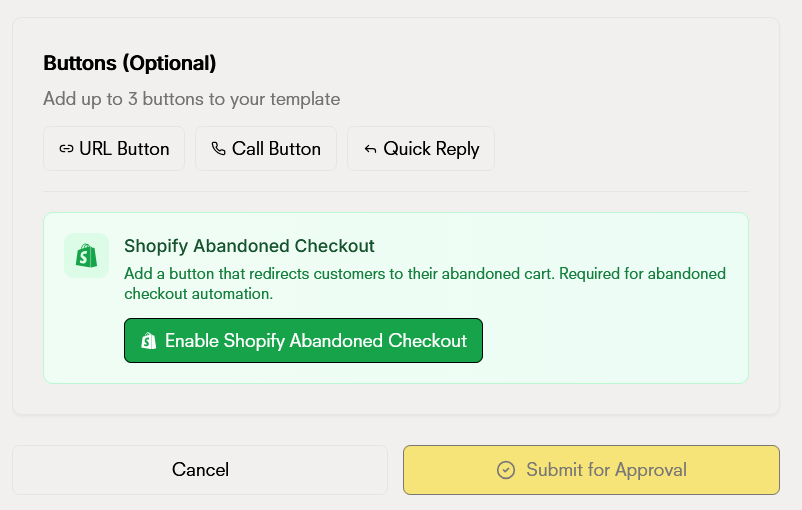
    <h3>5. Buttons (Optional)</h3>
    <p>Add up to 3 interactive buttons to your template to enhance user experience.</p>

    <Frame>
      <img src="https://mintcdn.com/doko/SNNEOEVDbaXJZU2D/images/mensajes/en/buttons.png?fit=max&auto=format&n=SNNEOEVDbaXJZU2D&q=85&s=80d7f7d90f9c3db7710c618fb7bdc1a4" alt="Template buttons" width="802" height="510" data-path="images/mensajes/en/buttons.png" />
    </Frame>

    <h4>Available button types:</h4>

    <ul>
      <li><strong>URL buttons</strong>: Links to external websites (must start with http\:// or https\://)</li>
      <li><strong>Phone buttons</strong>: To initiate calls directly (international format)</li>
      <li><strong>Shopify Abandoned Checkout</strong>: Special button that redirects customers to their abandoned cart. Required for abandoned checkout automation</li>
    </ul>

    <p><strong>Requirements:</strong></p>

    <ul>
      <li>Maximum 3 buttons per template</li>
      <li>Button text: maximum 20 characters</li>
    </ul>

    <Tip>The Shopify Abandoned Checkout button is especially useful for recovering lost sales</Tip>
  </Step>

  <Step>
    <h3>6. Preview and submit</h3>
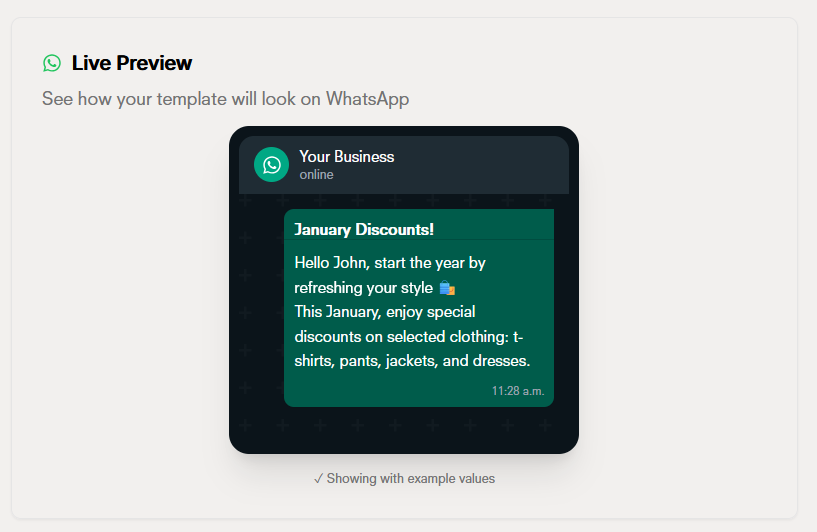
    <p>The live preview updates automatically as you build your template, showing you exactly how your contacts will see it.</p>

    <Frame>
      <img src="https://mintcdn.com/doko/SNNEOEVDbaXJZU2D/images/mensajes/en/preview.png?fit=max&auto=format&n=SNNEOEVDbaXJZU2D&q=85&s=372db7617eabd517562114a53ed85ac2" alt="Preview" width="817" height="532" data-path="images/mensajes/en/preview.png" />
    </Frame>

    <p>Once completed, click <strong>"Submit for Approval"</strong>. Templates are reviewed by Meta and generally approved within 24 hours.</p>
    <Warning>Carefully review the preview before submitting. Make sure your template follows WhatsApp guidelines to avoid rejection</Warning>
  </Step>
</Steps>

## Template statuses

Templates can have different statuses during their lifecycle:

| Status       | Description                                                 | Available actions                         |
| ------------ | ----------------------------------------------------------- | ----------------------------------------- |
| **Pending**  | The template has been submitted and is under review by Meta | View details, wait for approval           |
| **Approved** | Meta has approved the template and it's ready to use        | Use in campaigns, view details, duplicate |
| **Rejected** | Meta has rejected the template                              | View rejection reason, create new version |
| **Paused**   | The template has been temporarily paused                    | Reactivate, view details                  |

### Common rejection reasons

If your template is rejected, Meta will provide a specific reason. The most common reasons include:

* **Prohibited content**: Spam, misleading content, or content that violates policies
* **Incorrect category**: The category doesn't match the content
* **Incorrect format**: Errors in parameters, buttons, or structure
* **Marketing policies**: Violation of specific marketing policies
* **Missing information**: Required fields incomplete or incorrect

<Danger>
  If your template is rejected, review the reason provided by Meta and fix the issues before creating a new version. Templates rejected multiple times may affect your account.
</Danger>

## Best practices for templates

<CardGroup cols={2}>
  <Card title="Correct category" icon="tag">
    Always select the category that best describes the real purpose of your template. This speeds up the approval process.
  </Card>

  <Card title="Review before submitting" icon="check-circle">
    Always review the preview before submitting. Check spelling, grammar, and that all parameters are correctly defined.
  </Card>

  <Card title="Descriptive names" icon="file-text">
    Use names that clearly describe the purpose of the template. This makes management easier when you have many templates.
  </Card>

  <Card title="Policy compliance" icon="shield">
    Familiarize yourself with WhatsApp and Meta content policies before creating templates to avoid rejections.
  </Card>
</CardGroup>

<Warning>Paused templates cannot be used in new campaigns, but existing campaigns that use them will continue to work</Warning>

<Accordion title="Frequently asked questions">
  ### How long does Meta take to approve a template?

  Generally, Meta approves or rejects templates within 24 hours. However, this time may vary depending on:

  * The template category (marketing templates may take longer)
  * Meta's request volume
  * The complexity of the template

  ### Can I edit a template after submitting it for approval?

  No, once submitted for approval, you cannot edit the template until it's approved or rejected. If you need to make changes, you'll need to create a new template.

  ### What happens if my template is rejected?

  If your template is rejected, you'll be able to see the specific rejection reason. You can create a new version by fixing the mentioned issues. There's no limit on how many times you can try to create a template.

  ### How many templates can I have?

  There's no strict limit on the number of templates you can create, but it's recommended to maintain only the templates you really need to keep your account organized.

  ### Can I use the same template in multiple campaigns?

  Yes, once a template is approved, you can use it in as many campaigns as you want. This is especially useful for frequently used templates.

  ### Are dynamic parameters mandatory?

  No, dynamic parameters are optional. You can create templates without parameters if the message is static and doesn't require personalization.

  ### Can I use emojis in templates?

  Yes, you can use emojis in templates, but use them in moderation and make sure they're appropriate for your business's professional context.
</Accordion>