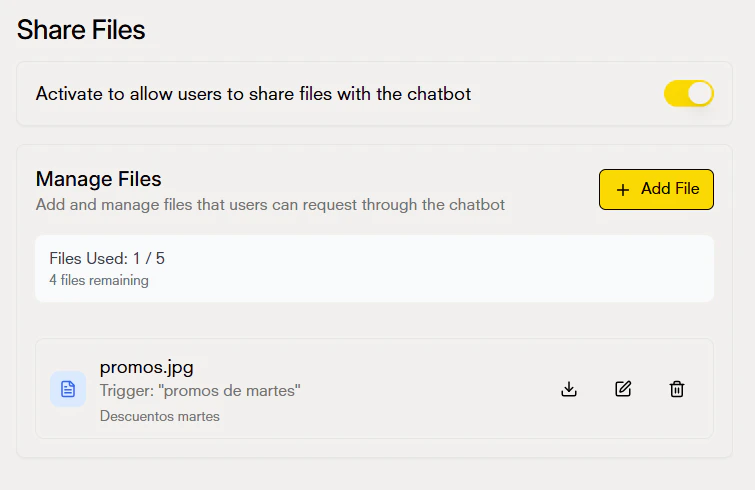
The file sharing tool allows you as an administrator to provide files to your users automatically during conversations with the chatbot.
Main Features
-
Share files with users: Configure files (images or PDFs) that the chatbot will automatically provide when a specific situation is triggered during the conversation.
-
File upload by users: Users can upload files directly to the chatbot when this functionality is enabled.
-
Management from dashboard: You have the option to upload files manually from the dashboard, allowing the chatbot to send additional information to users when necessary.
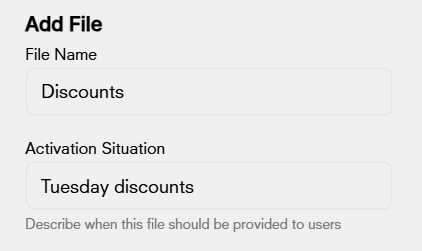
To configure a file that the chatbot will provide to users, you need to complete the following form:
-
File Name: Enter the name with which the file will be identified and sent to users.
-
Activation Situation: Describe when this file should be provided to users. For example, “when the user asks for the catalog” or “when they request contact information”. This description helps the chatbot recognize when to share the file.
-
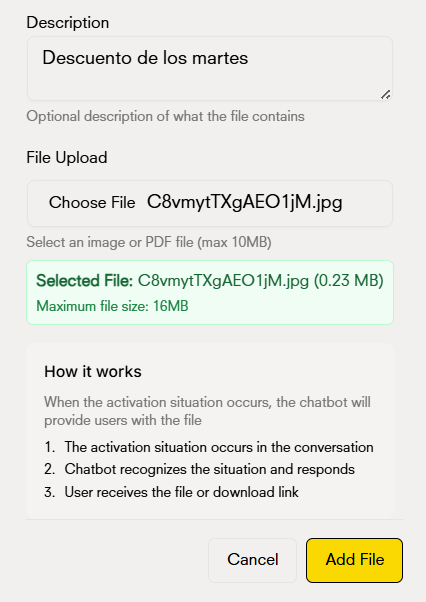
Description (optional): Provide an optional description of what the file contains.
-
Upload File: Select the file you want to share. You can upload images or PDF files with a maximum size of 10MB.
How It Works
When you configure a file to share, the process works as follows:
-
The activation situation occurs in the conversation: The user mentions or asks something that matches the activation situation you configured.
-
The chatbot recognizes the situation and responds: The chatbot identifies that it should provide the file based on the configured activation situation.
-
The user receives the file or download link: The chatbot automatically provides the file to the user, either as an attachment or as a download link, depending on the integration platform.
Make sure to be specific in the activation situation.