

What are follow-up messages?
Follow-up messages are automatic messages sent to your customers based on their current situation. They can serve as reminders, to re-engage a conversation with an interested customer, or to drive a pending action. Other advantages of follow-ups are:- Recover conversations: Re-engage customers who stopped responding
- Automate follow-up: Don’t lose opportunities by forgetting to do manual follow-up
- Improve experience: Keep communication fluid and proactive with your customers
- Increase conversions: Improve your response rates and sales closure
Prerequisites
Before creating your first follow-up, make sure you have:- Active integration: At least one active messaging integration (WhatsApp, Instagram or Messenger)
- Existing conversations: Follow-ups are applied to active conversations with your customers
- WhatsApp templates (optional): If you use WhatsApp and want to send after 24 hours, you need pre-approved templates
Main follow-ups view
The main view allows you to manage all your follow-up messages from a single place. Here you’ll find all the tools needed to manage your automations.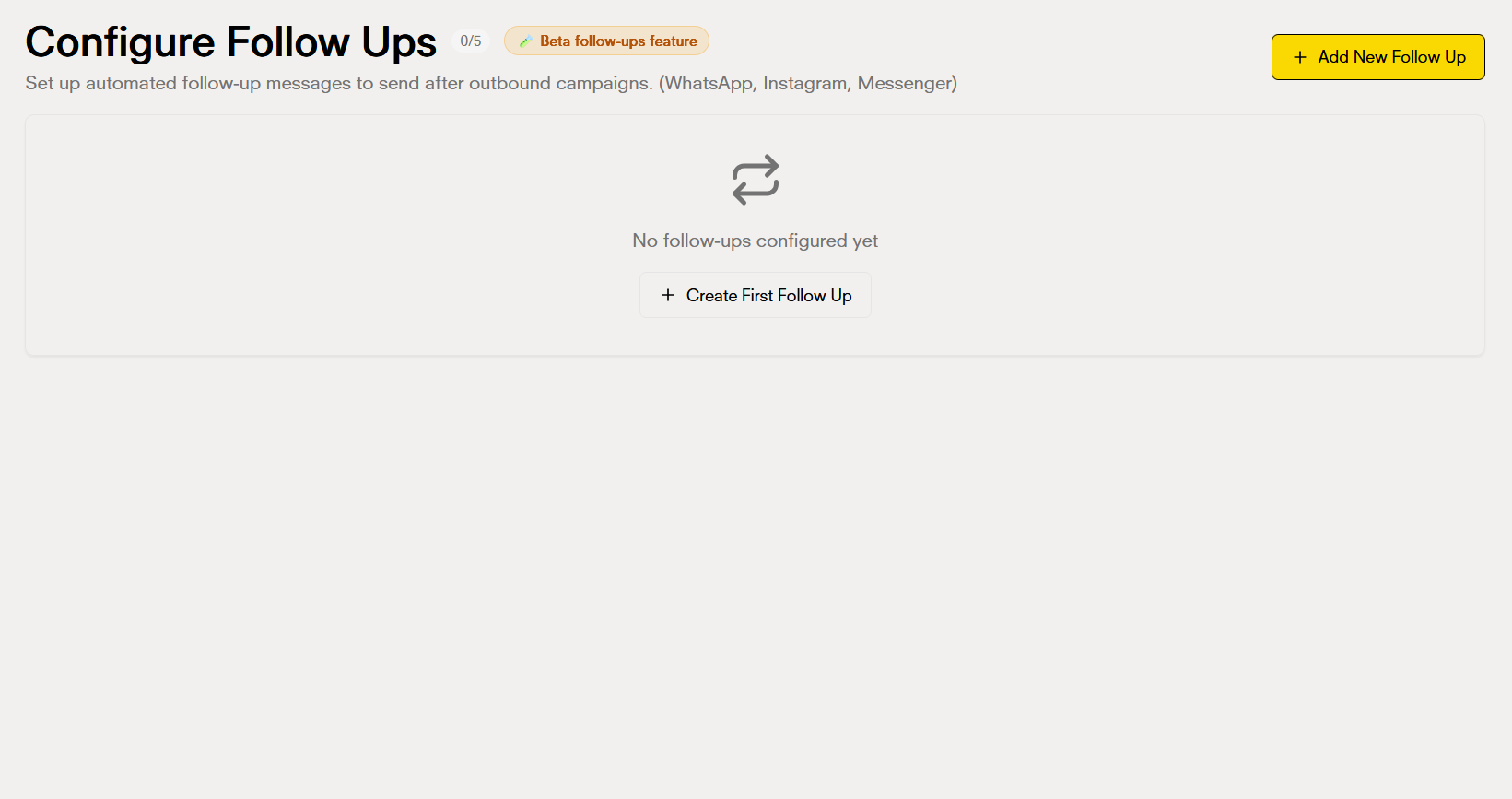
Create a follow-up message
To create a new follow-up, click the Create Follow-up button located in the top right of the main page.
1. Display Name
Enter a friendly and descriptive name that helps you easily identify this follow-up in your list.

Requirements:
- Maximum 100 characters
- Descriptive name of the follow-up’s purpose
Examples:
- “Inquiry follow-up - 24 hours"
- "Abandoned product reminder”
2. Label Color (Optional)
Choose a color to label this follow-up and improve the visual organization of your list.
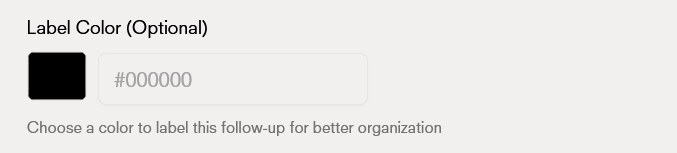
Label colors allow you to:
- Visually organize your follow-ups
- Group follow-ups by type or purpose
- Quickly identify different categories
3. Delay After Last Interaction
Configure when the follow-up will be sent after the customer stopped responding.

Available options:
- Let AI decide: Artificial intelligence will determine the best time to send the follow-up based on the conversation context
- Manual configuration: Define a specific time (hours or minutes) after the last interaction
Platform limitations:
- Instagram and Messenger: Maximum 24 hours after the last interaction (Meta API policy)
- WhatsApp: You can use more time if you use templates pre-approved by Meta. Without templates, it’s also limited to 24 hours
4. Description *
This description is crucial: it tells the AI when and why to activate this follow-up. It should be clear and specific about the conditions.

Examples of good descriptions:
- Send follow-up when a customer asks about a product but doesn’t respond in 6 hours
- Reminder for customers who requested information about services but left the conversation without closing
- Sales follow-up when the customer shows interest but doesn’t complete the purchase
What to include in the description:
- Conversation context (what type of inquiry or situation)
- Activation condition (when it should be sent)
- Message purpose (what you want to achieve)
6. Message (Optional)
Define the content of the message that will be sent as part of this follow-up. The message only applies within a 24-hour window.
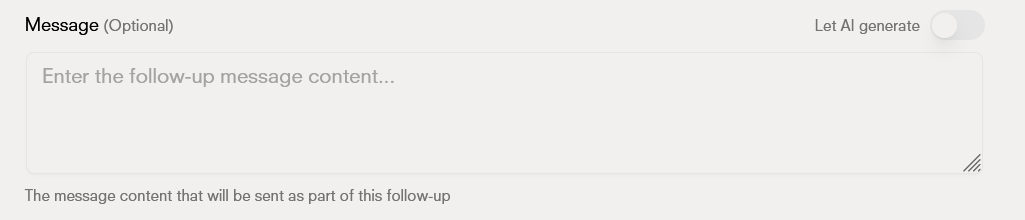
Available options:
- Let AI generate: Artificial intelligence will create the message automatically based on the description and conversation context
- Write custom message: Define exactly what message you want to send
Advantages of each option:
AI generates the message:
- Contextually relevant messages
- Automatic adaptation to the tone and style of the conversation
- Time savings in configuration
- Personalization according to each customer’s context
Custom message:
- Total control over content
- Consistency in the message for all customers
- Ideal for specific messages or with corporate information
7. WhatsApp Template (Optional)
If you use WhatsApp and need to send follow-ups after 24 hours, you can use a template pre-approved by Meta. Having a template is completely necessary if the follow-up is after 24 hours.

When to use templates:
- When you need to send follow-ups after 24 hours on WhatsApp
- For promotional or marketing messages
- To maintain consistency with your approved templates
Important about costs:
You can select a previously created and approved template from your list of available templates. Or you can also create a template from Doko and use it here.
8. Review and create
Review all settings before creating the follow-up. Once created, it will be active and will start working automatically.
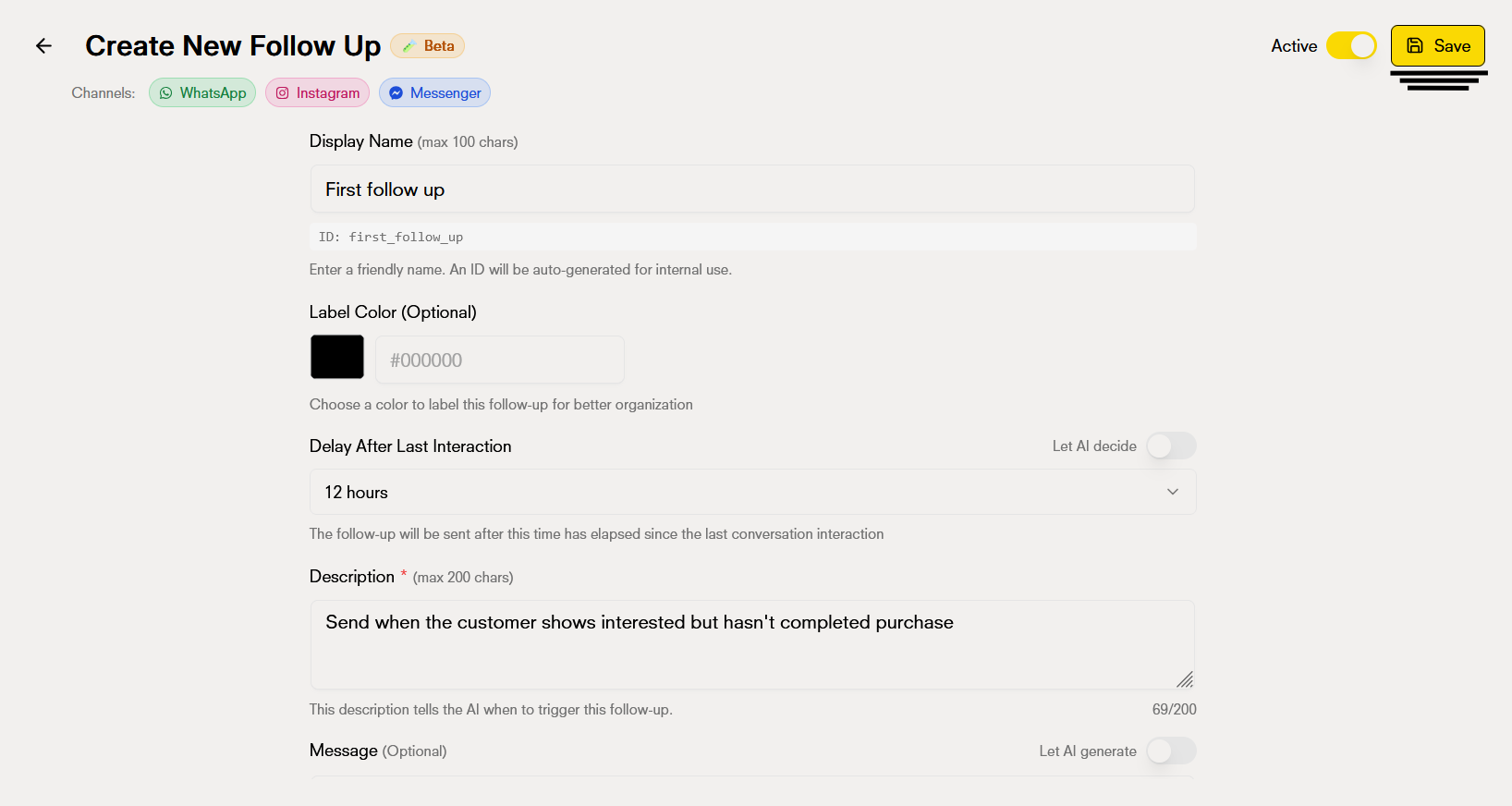
Before confirming, verify:
- Descriptive and clear name
- Appropriate delay time for your platform
- Description that clearly explains when to activate
- Well-defined stop trigger
- Message configuration (AI or custom)
- WhatsApp template if necessary
Follow-up Stop Trigger
Required Set the conditions in which the AI should suspend scheduling follow-ups for a conversation. This prevents sending messages once the objectives have been met. With this description, the AI will know when to cancel all pending follow-ups for a conversation.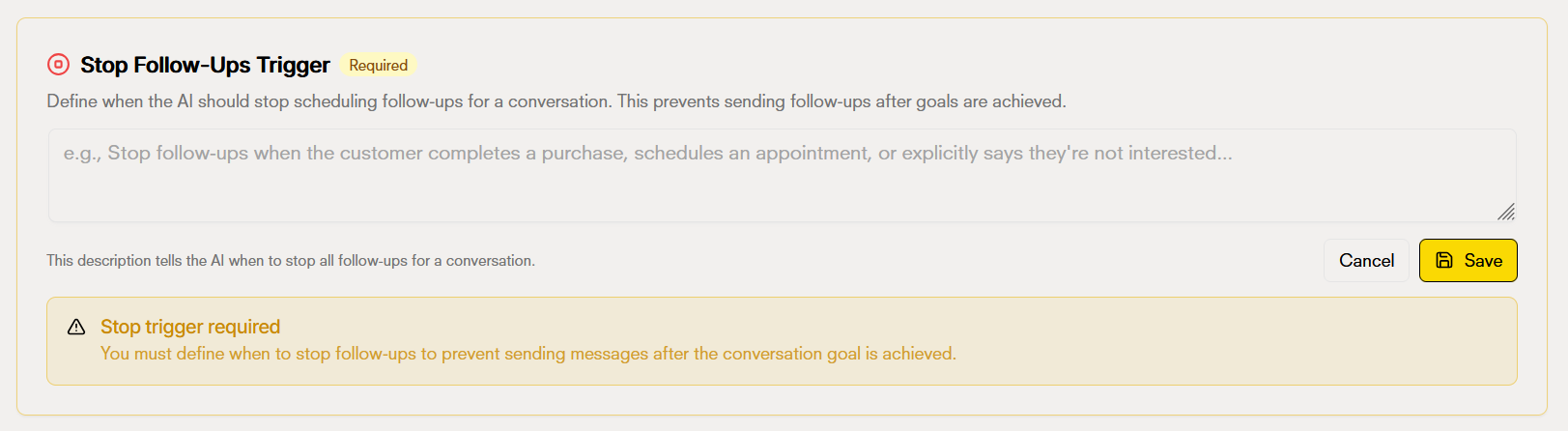
Best practices for follow-ups
Appropriate times
Contextual messages
Respect limits
Test and optimize
Follow-up management
From the main view you can:- View details: Review the complete configuration of each follow-up
- Activate/Deactivate: Control which follow-ups are active without deleting them
- Edit: Modify the configuration of existing follow-ups
- Delete: Delete follow-ups you no longer need
- Organize by color: Use label colors to filter and organize visually

Usage examples
Example 1: Appointment scheduling reminder
Configuration:- Name: Pending appointment reminder - 4 hours
- Color: Blue
- Delay: 4 hours
- Description: Send follow-up when a customer shows interest in scheduling an appointment but doesn’t confirm the date and time
- Stop trigger: Stop when the customer confirms the appointment, cancels the request, or indicates they’re no longer interested
- Message: Custom with availability reminder and time slot options
- WhatsApp template: Yes (for sending after 24 hours)
Example 2: Post-sale follow-up
Configuration:- Name: Post-sale follow-up
- Color: Green
- Delay: 24 hours (with WhatsApp template)
- Description: Follow-up after a purchase to ensure customer satisfaction
- Stop trigger: Stop when the customer confirms satisfaction, reports a problem (to escalate to support), or thanks for the follow-up
- Message: Let AI generate
- WhatsApp template: Purchase confirmation
Limitations and considerations
Time limits by platform
WhatsApp costs
When using WhatsApp templates for follow-ups, keep in mind that:- An additional charge will be generated for using the WhatsApp API
- Prices vary according to your plan and region
- Check updated prices in the official WhatsApp Business API documentation
Frequently asked questions
Frequently asked questions