

What are WhatsApp templates?
WhatsApp templates are pre-approved messages by Meta that allow you to initiate conversations with your customers. Unlike regular messages, templates allow you to send promotional messages, notifications, and updates to users who haven’t started a conversation with you. With templates you can:- Send promotional messages: Share offers, promotions, and events with your contacts
- Important notifications: Inform about changes, updates, or reminders
- Personalization: Use dynamic parameters to personalize each message
- Categorization: Organize your templates by categories (marketing, utility, authentication)
Prerequisites
Before creating your first template, make sure you have:- Active WhatsApp integration: You must have the WhatsApp Business integration configured and active
- Meta Business Portfolio: You need a verified business portfolio in Meta
- WhatsApp Business number: Your number must be verified and active
Main templates view
The main templates view allows you to manage all your WhatsApp templates from a single place. Here you’ll find all the tools you need to manage your pre-approved messages.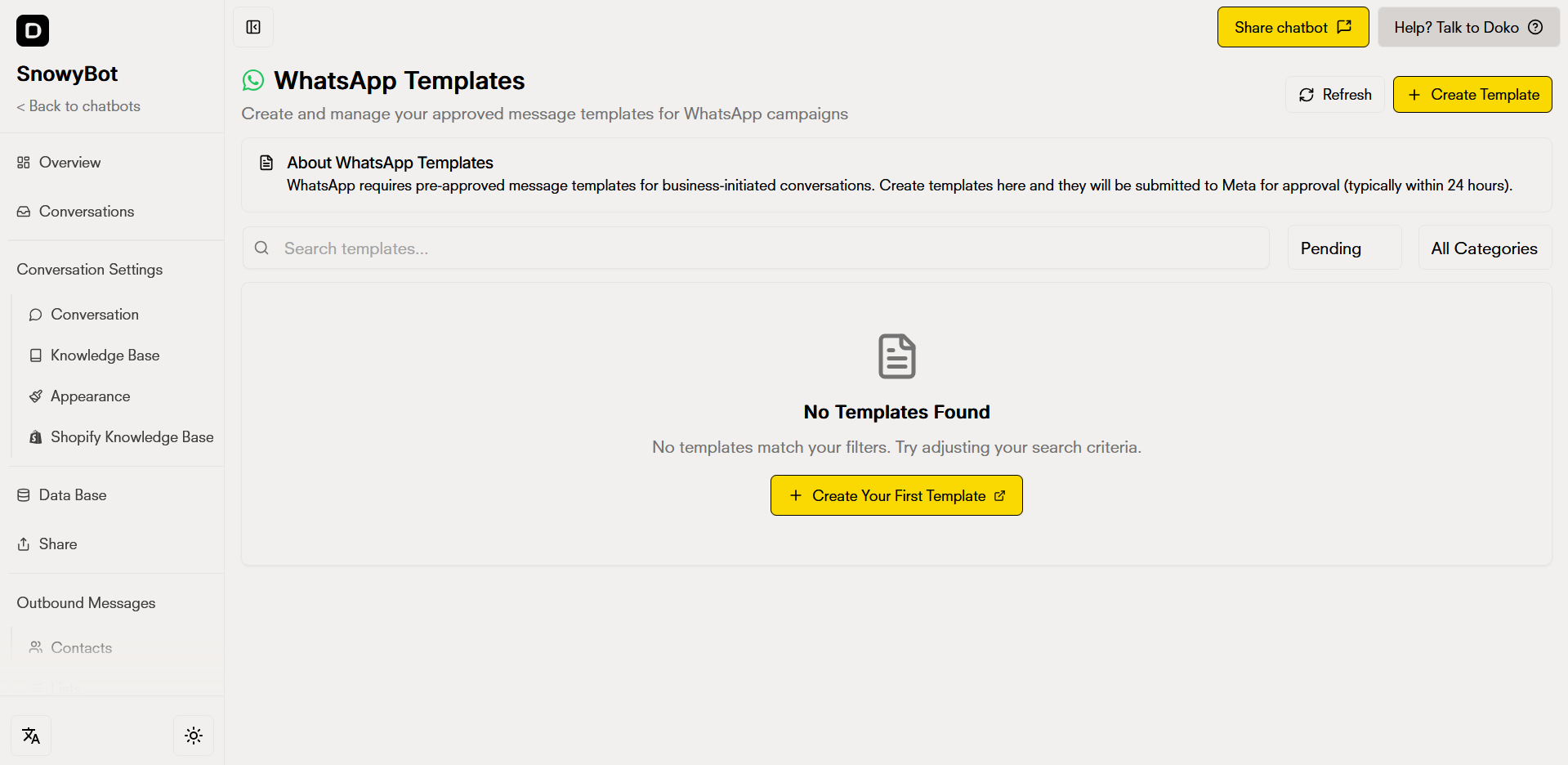
Main view features
Templates list
Refresh button
Advanced search
Create new template
Refresh and search templates
To update your templates information, click the Refresh button located at the top of the page. The search function allows you to find templates by:- Name: Search for specific templates by typing their name
- Approval status: Filter by approved, pending, rejected, or paused
- Category: Organize by Marketing, Utility, or Authentication

Information displayed for each template
Each template in the list shows important information: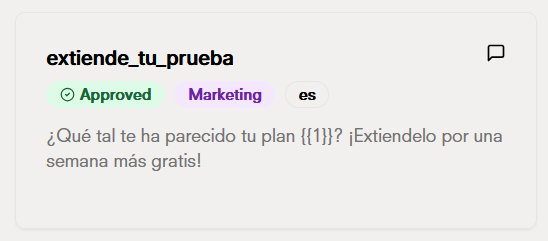
- Template name: The name you gave to the template
- Approval status: Visual indicator of the status (approved, pending, rejected)
- Category: Template type (marketing, utility, authentication)
- Message preview: A sample of how the message will look
Create a new template
To create a new WhatsApp template, click the “Create Template” button located at the top right of the main page. The creation form includes a live preview that updates automatically as you build your template.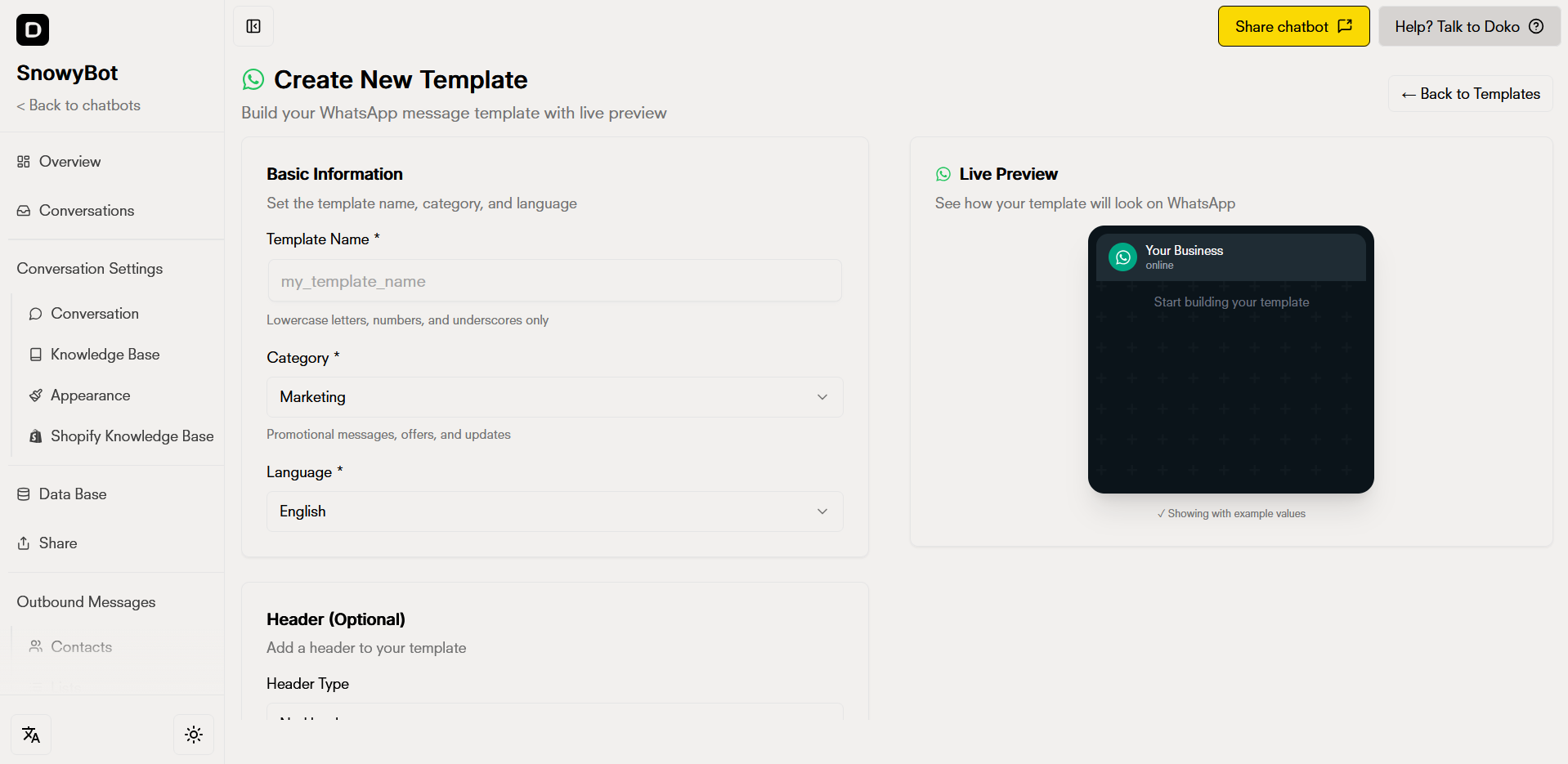
1. Basic information
Configure the fundamental data of your template:

Template Name *
Assign a unique and descriptive name.
- Must be unique (cannot duplicate existing names)
- Valid example:
promotion_black_friday_2024
Category *
Choose the category that best describes the purpose:
- MARKETING: Promotional messages, offers, and commercial updates
- UTILITY: Transaction notifications, account updates, reminders
- AUTHENTICATION: Verification codes and security
Language *
Select the language in which your template content is written.
2. Header (Optional)
Add a header to your template by selecting the header type:
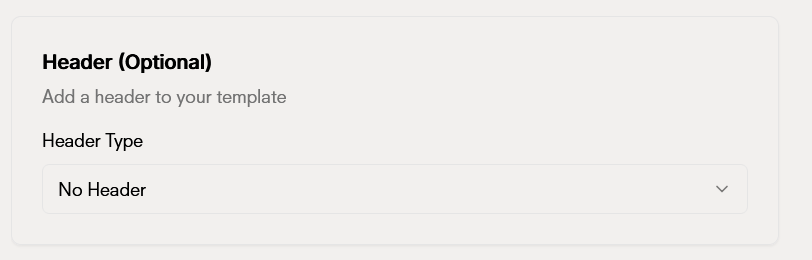
- Text: Up to 60 characters
- Image: JPG, PNG, or GIF
- Video: MP4
- Document: PDF
3. Message body *
Write the main content of your template. This will be the message your contacts will receive.
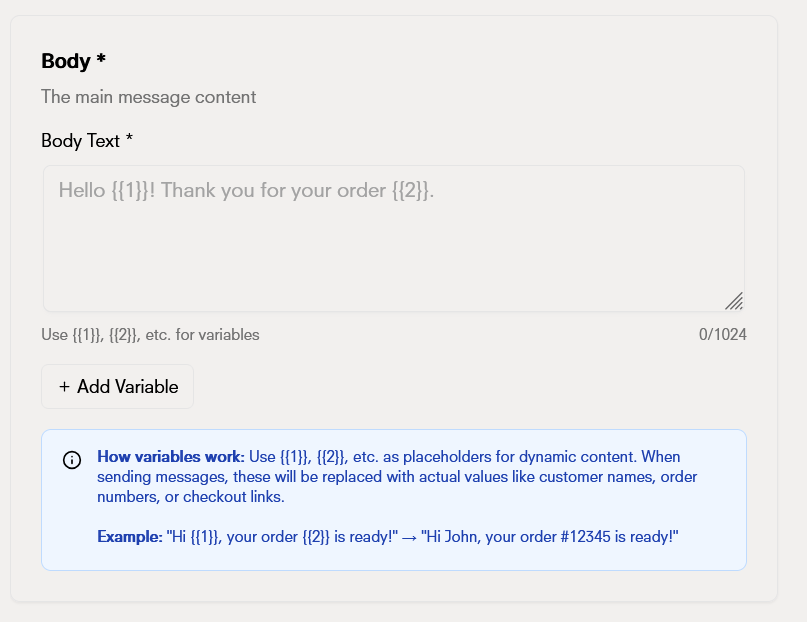
How variables work
Use , , , etc. as placeholders for dynamic content. When sending messages, these will be replaced with real values such as customer names, order numbers, or checkout links.
Example:
Hello , your order is ready!Will become:
Hello John, your order #12345 is ready!4. Footer (Optional)
Add a footer text below the message. Ideal for contact information, legal terms, or calls to action.
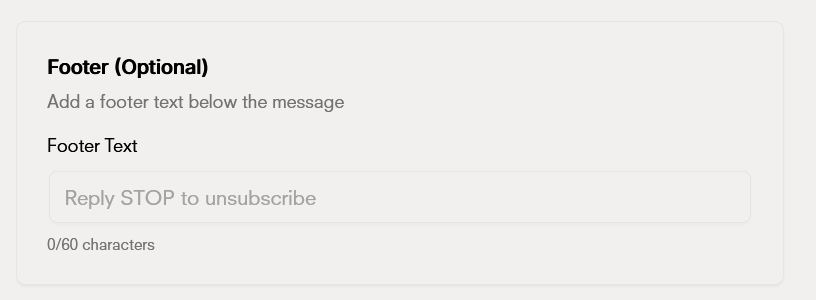
Requirements:
- Maximum 60 characters
- Cannot contain dynamic parameters
5. Buttons (Optional)
Add up to 3 interactive buttons to your template to enhance user experience.
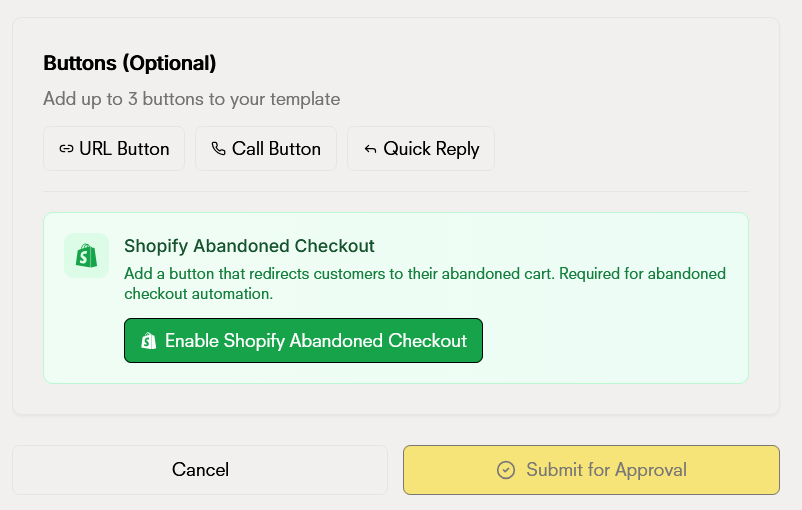
Available button types:
- URL buttons: Links to external websites (must start with http:// or https://)
- Phone buttons: To initiate calls directly (international format)
- Shopify Abandoned Checkout: Special button that redirects customers to their abandoned cart. Required for abandoned checkout automation
Requirements:
- Maximum 3 buttons per template
- Button text: maximum 20 characters
6. Preview and submit
The live preview updates automatically as you build your template, showing you exactly how your contacts will see it.
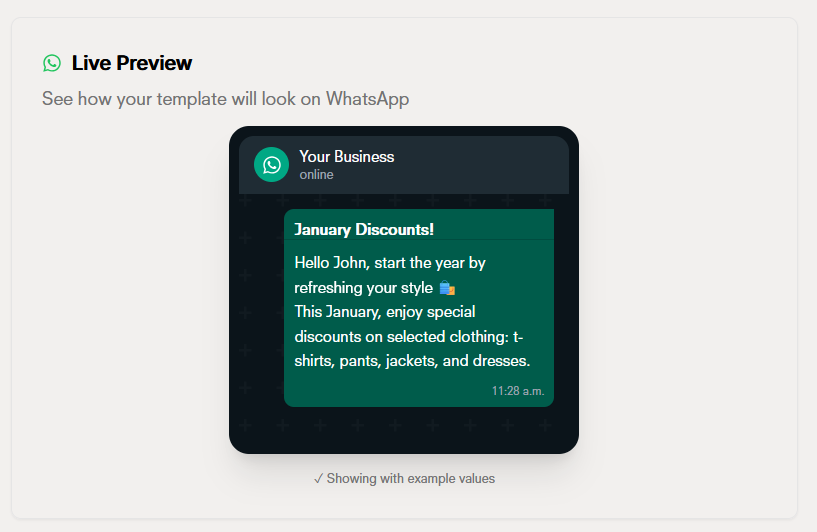
Once completed, click “Submit for Approval”. Templates are reviewed by Meta and generally approved within 24 hours.
Template statuses
Templates can have different statuses during their lifecycle:Common rejection reasons
If your template is rejected, Meta will provide a specific reason. The most common reasons include:- Prohibited content: Spam, misleading content, or content that violates policies
- Incorrect category: The category doesn’t match the content
- Incorrect format: Errors in parameters, buttons, or structure
- Marketing policies: Violation of specific marketing policies
- Missing information: Required fields incomplete or incorrect
Best practices for templates
Correct category
Review before submitting
Descriptive names
Policy compliance
Frequently asked questions
Frequently asked questions
How long does Meta take to approve a template?
Generally, Meta approves or rejects templates within 24 hours. However, this time may vary depending on:- The template category (marketing templates may take longer)
- Meta’s request volume
- The complexity of the template